# ACT 100: Dataset Activation with Data Distiller

## Introduction

In today's data-driven enterprises, activating datasets from a Customer Data Platform (CDP) plays a critical role in maximizing the value of AI/ML models, enterprise reporting, and Customer 360 initiatives. Dataset activation enables AI/ML algorithms to predict customer behavior, delivering highly personalized interactions across channels. In enterprise reporting, activated data provides real-time insights for performance tracking. For Customer 360, it unifies customer profiles, giving businesses a comprehensive view of their customers, ultimately driving better decision-making, precise targeting, and improved customer experiences across the organization.

## Overview

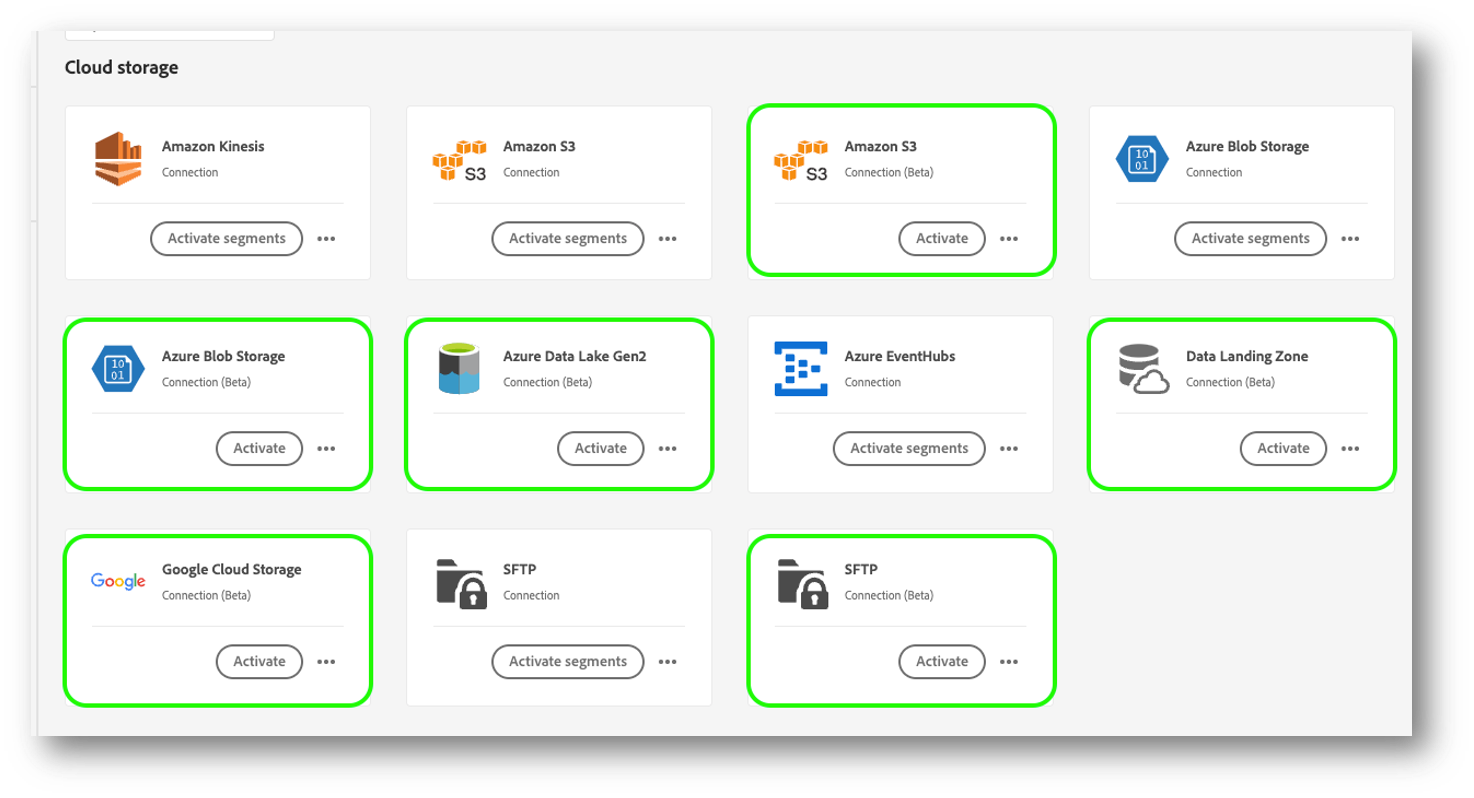
Data Distiller offers a variety of cloud storage options accessible through the Destination UI:

1. **Cloud Storage Destinations (File-Based)**: Accessible via Destination UI, supporting 6 cloud storage options:
   * Amazon S3
   * Google Cloud Storage
   * Azure Data Lake Storage Gen 2
   * Azure Blob Storage
   * Data Landing Zone
   * FTP
2. **Batch Export Options**:
   * Incremental and first-time full export
   * Export frequencies: 3, 6, 8, 12, 24 hours
3. **Output Formats**: JSON, Parquet. CSV is not supported.
4. **Data Job Export Limits**:
   * **Event data**
     * Datasets conforming to Experience Event Schema that have a `_id` and `timestamp:` Maximum of 365 days
     * You can workaround this by using an Profile Record Schema
   * **Volume:** 10 billion records across all datasets in a single job
5. **DULE Enforcement**: Ensures derived datasets are manually labeled in Data Distiller for compliance.

<figure><img src="https://1899859430-files.gitbook.io/~/files/v0/b/gitbook-x-prod.appspot.com/o/spaces%2FEhcgqFIfGdE0GXJzi5yR%2Fuploads%2FEEZ9Ept2KpCTDI1X1Dc1%2Fimage.png?alt=media&#x26;token=ac6782c4-a2d3-4d2d-9507-8d58afcd670f" alt=""><figcaption><p>Cloud storage destinations marked in green are supported.</p></figcaption></figure>

## Data Distiller Derived Datasets vs. Raw Dataset Export

Data Distiller provides additional lake storage with a flexible and generous data retention policy, ensuring that large volumes of data can be stored and accessed over extended periods to meet enterprise requirements (check license entitlements for details). It converts raw datasets into optimized, derived datasets tailored for enterprise use cases like reporting, AI/ML model training, and business insights. This transformation ensures the data is structured, relevant, and analysis-ready, eliminating the need for complex processing and simplifying the extraction of actionable insights.

{% hint style="warning" %}
Ensure that the batch export schedule is set to run after the completion of Data Distiller jobs. Currently, there is no functionality to trigger a batch export immediately after a Data Distiller job finishes, so careful scheduling is required to prevent overlap or incomplete data export.
{% endhint %}

## AI/ML Training Use Cases

Exporting a **derived dataset**, also referred to as a **feature dataset** in a AI/ML context, offers significant benefits compared to working with raw data, particularly in scenarios involving data analysis, reporting, or model training. Derived datasets consist of **pre-processed, structured**, and often **enriched information** that is ready for immediate use. This structured nature provides several critical advantages:

1. **Pre-Processed and Ready for Use**: Derived datasets have undergone **pre-processing** to clean, transform, and enhance the raw data. This involves steps such as data normalization, outlier removal, handling missing values, and applying relevant transformations. By performing these tasks ahead of time, the dataset is ready for analysis or AI/ML model training without requiring additional preparation. This significantly reduces the time and effort needed for data cleaning and preprocessing, allowing teams to focus directly on extracting insights or building models.
2. **Feature Engineering**: One of the key components of a derived dataset is the inclusion of **engineered features**. These features are specifically designed to capture important insights, trends, or patterns that may not be apparent in the raw data. For example, features could include customer behavior patterns, time-based aggregates (like rolling averages), or calculated metrics (like customer lifetime value). By incorporating these meaningful features, derived datasets eliminate the need for analysts or data scientists to manually engineer features from raw data, thereby streamlining the analytical process.
3. **Reduced Processing Time**: Since the heavy lifting of data transformation has already been done, using a derived dataset greatly reduces the processing time for queries, model training, or reports. Raw data often requires multiple rounds of cleaning, joining, and transforming before it can be used effectively, which can be resource-intensive. Derived datasets provide all of the necessary transformations in advance, allowing business users and data scientists to bypass these steps and focus on the final analysis or model optimization.
4. **Consistency Across Analyses**: Derived datasets ensure that all users are working with the same set of **pre-calculated features** and metrics, promoting consistency across different analyses and reports. By exporting a dataset that includes standard features and attributes, organizations can avoid discrepancies that often arise when different teams calculate metrics or derive features independently from raw data. This consistency not only reduces errors but also enhances collaboration by ensuring everyone is working with the same version of the data.
5. **Improved Performance for AI/ML Models**: In machine learning workflows, derived datasets often lead to better model performance. This is because the features included in the dataset have been carefully engineered to highlight relevant patterns and relationships that are crucial for model training. Pre-processed data is cleaner, more relevant, and typically optimized for specific use cases. By providing models with high-quality features, organizations can improve prediction accuracy, reduce training time, and streamline hyperparameter tuning.
6. **Cleaner and More Relevant Data**: Derived datasets are typically **cleaner** and more **relevant** to specific business problems. Raw data may contain irrelevant information, missing values, or noise that can skew results. Derived datasets, on the other hand, focus on key attributes and features that have been filtered and processed for accuracy and relevance. This results in datasets that are more aligned with business objectives, providing decision-makers with higher-quality information for driving insights and making decisions.
7. **Streamlined Decision-Making for Business Users**: By delivering datasets that are pre-processed and enriched with meaningful features, business users can more easily extract insights without requiring in-depth technical knowledge of data processing. The simplified structure and curated features of a derived dataset allow for faster and more accurate decision-making, whether the data is used for creating dashboards, running reports, or feeding predictive models. This enables business teams to act quickly on data-driven insights without having to navigate the complexities of raw data transformation.

## Enterprise Reporting

In enterprise reporting, exporting a **derived dataset** offers significant advantages over working with raw data. Derived datasets are the result of pre-processed data that integrates **pre-calculated facts** and **meaningful attributes** from a well-structured data model, such as a **star schema**. This structure, which combines **fact tables** (like sales, revenue, or transaction data) with enriched **lookup tables** (such as customer demographics or product categories), provides several key benefits:

1. **Simplified Data Structure**: Derived datasets come pre-joined and pre-aggregated, meaning that the complex relationships between fact tables and dimension tables have already been resolved. This eliminates the need for additional joins or transformations during query time, reducing the complexity of data retrieval for reporting. Users and analysts can immediately work with the data without needing to understand its underlying relational structure, leading to faster time to insight.
2. **Enhanced Performance**: Because the dataset is already enriched and pre-calculated, query execution is significantly faster. Raw data often requires multiple joins and real-time transformations, which can be time-consuming, especially with large datasets. By exporting a derived dataset that includes pre-aggregated metrics (such as total sales, revenue, or customer segments), enterprises can ensure that reporting dashboards, queries, and analytics tools perform optimally, even under heavy workloads or high concurrency.
3. **Consistency and Accuracy**: Exporting derived datasets ensures that the same **business logic** and **calculation methods** are applied consistently across all use cases. Whether generating dashboards, building reports, or performing ad hoc analyses, the data remains consistent because the underlying facts and metrics have been calculated and validated ahead of time. This reduces the risk of discrepancies or inconsistencies that can arise when multiple teams perform their own calculations on raw data.
4. **Pre-Integrated Lookups for Richer Insights**: Derived datasets can also include **enriched lookups**, such as customer demographics, product categories, and other contextual attributes. These lookup tables are already linked to fact tables, providing a richer, more meaningful view of the data. For example, sales data is not only presented as raw numbers but can also be segmented by customer age, location, or product type, which enables more granular and insightful analysis without requiring additional processing steps.
5. **Improved Dashboard Creation and Decision-Making**: With pre-processed data that includes both metrics and contextual information, creating **dashboards** and performing real-time analytics becomes more straightforward. Decision-makers can rely on the fact that the data is immediately usable, accurate, and up-to-date, allowing them to focus on interpreting insights rather than preparing or cleaning data. This helps accelerate decision-making processes and ensures that the insights derived are trustworthy and actionable.
6. **Reduced Operational Overhead**: Exporting derived datasets reduces the operational burden on data teams. By doing the heavy lifting of data transformation and enrichment upfront, enterprises can minimize the number of transformations required during reporting. This leads to fewer mistakes, reduces the need for frequent reprocessing, and frees up resources to focus on more strategic tasks like data governance or advanced analytics.

## Adobe Analytics Batch Data Feed

Adobe Analytics data that has been imported into the Adobe Experience Platform (AEP) Data Lake can be further processed through **Data Distiller** and then exported in batches for more granular analysis. This processing involves several key steps that refine the raw data to provide more meaningful insights.

1. **Sessionization**: One of the core processing steps is **sessionization**, which groups user activities into defined sessions. This can be achieved through a **window function** or a specialized **Data Distiller function** that segments interactions into time-bound sessions. For example, all user activities within a 30-minute window can be grouped as one session. Sessionization is crucial for understanding user journeys, behavior within defined periods, and the continuity of interactions.
2. **Attribution Functions**: After sessionizing the data, **attribution functions** are applied. These functions help assign credit for specific conversions or events to the appropriate marketing channels, touchpoints, or user actions. By applying attribution models (such as first-touch, last-touch, or multi-touch attribution), businesses can understand which marketing efforts led to conversions or significant customer actions.
3. **Deep Insights into Behavior and Attribution Patterns**: Processing the data through sessionization and attribution enables businesses to gain a deeper understanding of customer behavior and how different channels, campaigns, or touchpoints contribute to desired outcomes (such as purchases, sign-ups, or other conversions). This detailed insight helps to uncover trends and patterns that might be missed with raw, unprocessed data.
4. **Batch Export for Further Analysis**: Once the data has been refined through sessionization and attribution, it can be exported in batches. The batch export allows businesses to perform additional analysis, reporting, or integration with other systems. This refined data is now enriched with session-based insights and attribution details, making it more actionable for decision-making and performance tracking.

You can see these ideas in action in this special note[ here](#a-note-on-adobe-analytics-data-feeds).

## Special Export Formats for Audiences

There are limitations in Profile or Audience activation exports within Adobe Real-Time Customer Data Platform regarding the structure of the output segment. Output segments are required to follow the essential structure of identity and attributes, mirroring what is present in the Real-Time Customer Profile. Any other custom audience formatting use cases fall under the domain of Data Distiller activation.

In certain cases, you may need to export audiences in a special format as required by a destination. These formats may be unique to the destination’s data integration needs and cannot be handled by the standard Adobe Experience Platform (AEP) Destination Framework.

In such scenarios, an **audience format** serves as a **contract** between AEP and the destination. This contract defines the structure and rules for how the dataset (audience) should be exported. Essentially, these formats represent custom ways of structuring audiences that are necessary for some destinations. While audiences are typically handled as part of AEP’s **Data Distiller Derived Datasets**, there are special cases where the export format of an audience becomes a more tailored requirement.

#### Key Benefits of Using the Destination Framework:

1. #### **Access to Non-Cloud Storage Locations**: The Destination Framework allows the export of data to various types of storage systems, including on-premises, hybrid environments, or specialized non-cloud destinations.
2. **Audience Definition Integration**: The framework enables the integration of audience definitions within the **Real-Time Customer Profile**, ensuring that audience segmentation aligns with the required format for destinations.

## Data Landing Zone Destination

The **Data Landing Zone Source** is a staging area on the source side where external data sources can push their data, effectively mirroring the AEP data lake but outside the governance boundary. Each sandbox has its own Source Data Landing Zone, with datasets having a **7-day** time-to-live before deletion. Similarly, on the destination side, there is a **Data Landing Zone Destination** where data can be picked up by external systems. This setup allows you to verify dataset exports and even segment data, making it a fast and reliable method for confirming what data is being exported, which we'll utilize in our tutorial.&#x20;

## Prerequisites

We will create a Developer Project and use Python to access credentials for the Data Landing Zone. After that, we’ll use Azure Storage Explorer to retrieve and examine the exported data.

{% content-ref url="../prep-501-ingesting-json-test-data-into-adobe-experience-platform" %}
[prep-501-ingesting-json-test-data-into-adobe-experience-platform](https://data-distilller.gitbook.io/adobe-data-distiller-guide/prep-501-ingesting-json-test-data-into-adobe-experience-platform)
{% endcontent-ref %}

{% content-ref url="../unit-8-data-distiller-statistics-and-machine-learning/statsml-200-unlock-dataset-metadata-insights-via-adobe-experience-platform-apis-and-python" %}
[statsml-200-unlock-dataset-metadata-insights-via-adobe-experience-platform-apis-and-python](https://data-distilller.gitbook.io/adobe-data-distiller-guide/unit-8-data-distiller-statistics-and-machine-learning/statsml-200-unlock-dataset-metadata-insights-via-adobe-experience-platform-apis-and-python)
{% endcontent-ref %}

## Access Data Landing Zone Destination Credentials

1. Setup the **Developer Project** based on the instructions in this [section ](https://data-distiller.all-stuff-data.com/unit-7-data-distiller-statistics/stats-200-unlock-dataset-metadata-insights-via-adobe-experience-platform-apis-and-python#create-a-developer-project)
2. Generate the **Access Token** in Python based on the instructions in this [section](https://data-distiller.all-stuff-data.com/unit-7-data-distiller-statistics/stats-200-unlock-dataset-metadata-insights-via-adobe-experience-platform-apis-and-python#get-the-access-token)
3. Access the **Data Landing Zone Destination** credentials by executing the following code:

{% code overflow="wrap" %}

```python
import requests

# Replace this with your sandbox name
sandbox_name = 'prod'

# The URL to access the Data Landing Zone
url = 'https://platform.adobe.io/data/foundation/connectors/landingzone/credentials?type=dlz_destination'
sandbox_name='prod'

# Set the headers
headers = {
    "Authorization": f"Bearer {access_token}",
    "x-api-key": client_id,
    "x-gw-ims-org-id": org_id,
    "x-sandbox-name": sandbox_name,
    "Content-Type": "application/json"
}

# Send the GET request to access the Data Landing Zone
response = requests.get(url, headers=headers)

# Check the response status and output the result
if response.status_code == 200:
    # Successful, get the Data Landing Zone URL
    data_landing_zone = response.json()
    print("Data Landing Zone Info:", data_landing_zone)
else:
    # Handle errors
    print(f"Failed to get Data Landing Zone. Status Code: {response.status_code}, Response: {response.text}")
    
# Send the GET request to retrieve the SAS URL
response = requests.get(url, headers=headers)

if response.status_code == 200:
    credentials = response.json()
    print("Container Name:", credentials['containerName'])
    print("SAS Token:", credentials['SASToken'])
    print("Storage Account Name:", credentials['storageAccountName'])
    print("SAS URI:", credentials['SASUri'])
else:
    print(f"Failed to get credentials: {response.status_code}")

```

{% endcode %}

{% hint style="info" %}
If you want to get the Data Landing Zone Source credentials, you can get the same by just replacing the **`url`** in the above code as:

```
url = 'https://platform.adobe.io/data/foundation/connectors/
landingzone/credentials?type=user_drop_zone'
```

{% endhint %}

## Setup Azure Storage Explorer

1. Download the **Azure Storage Explorer** based on the instructions in this [section](https://data-distiller.all-stuff-data.com/prereq-106-ingesting-json-test-data-into-adobe-experience-platform#setup-azure-storage-explorer)
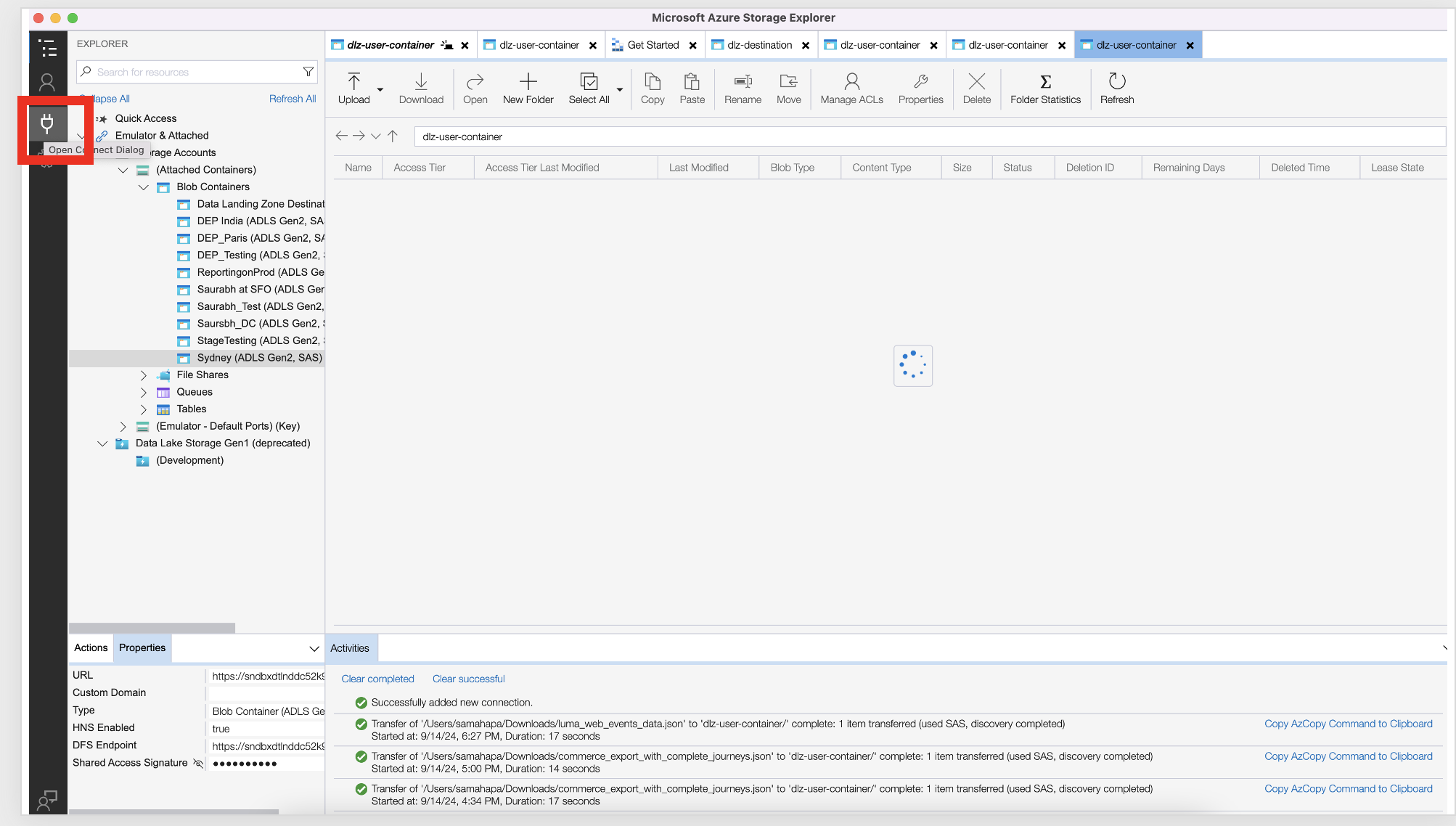
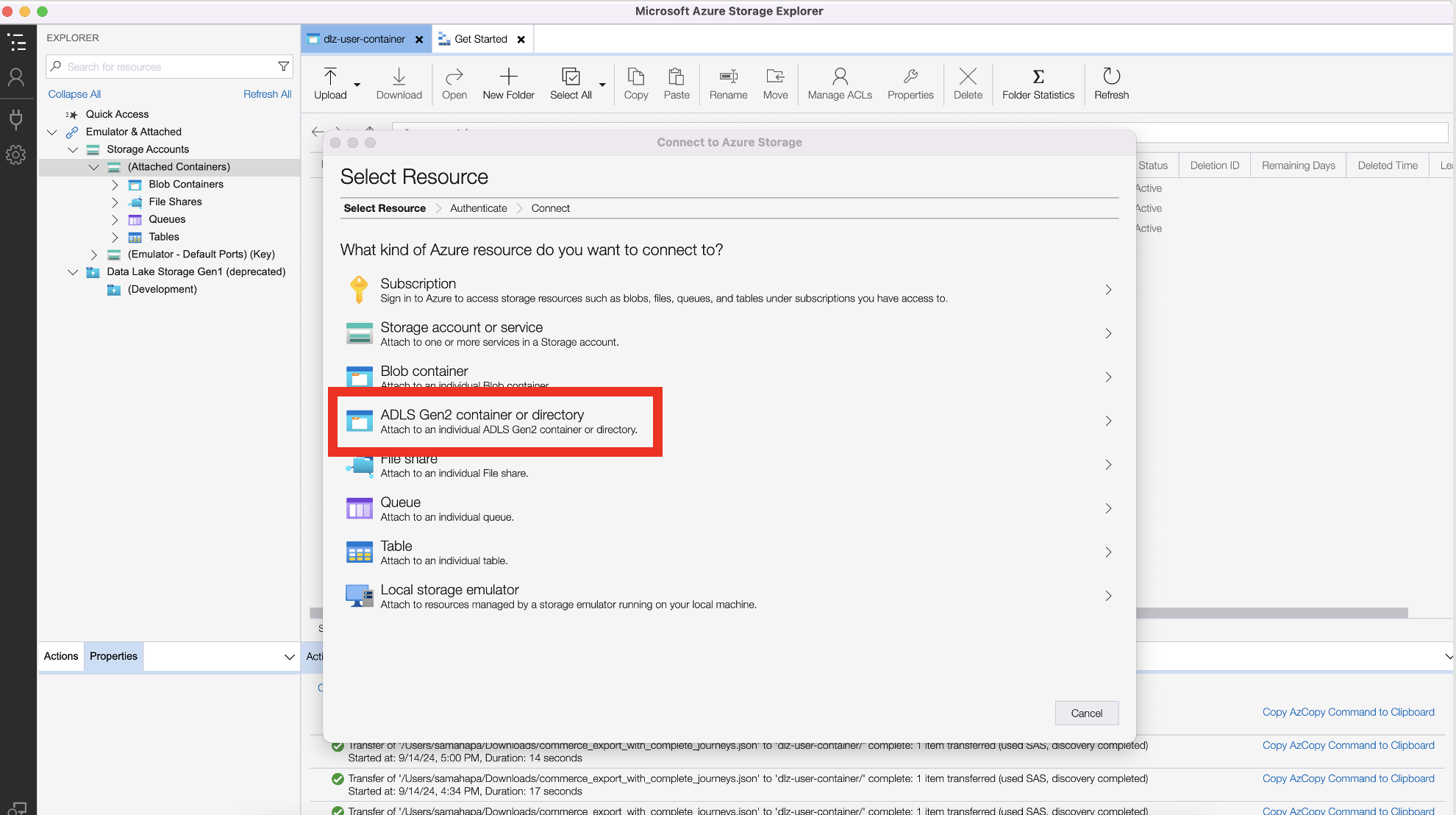
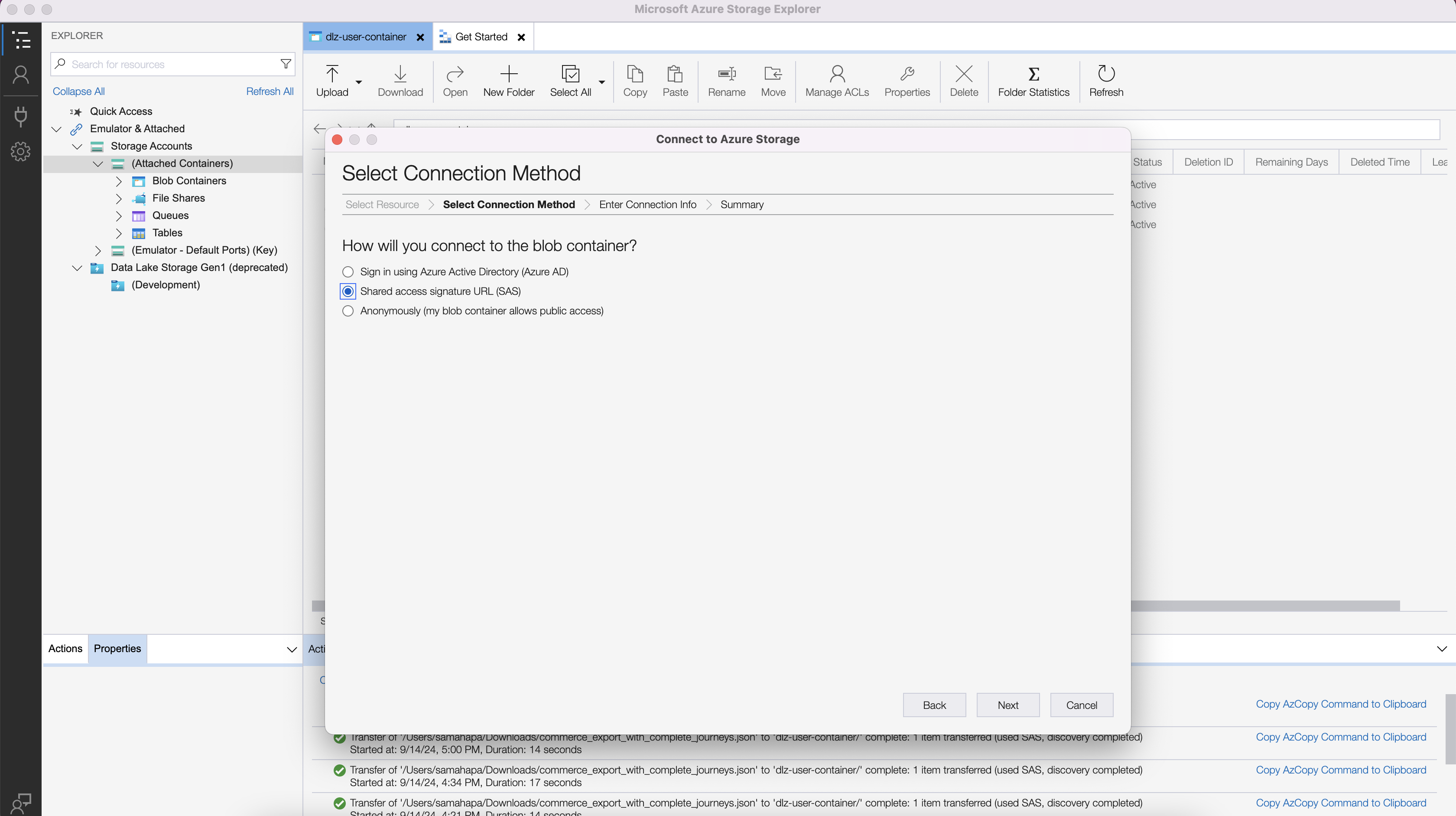
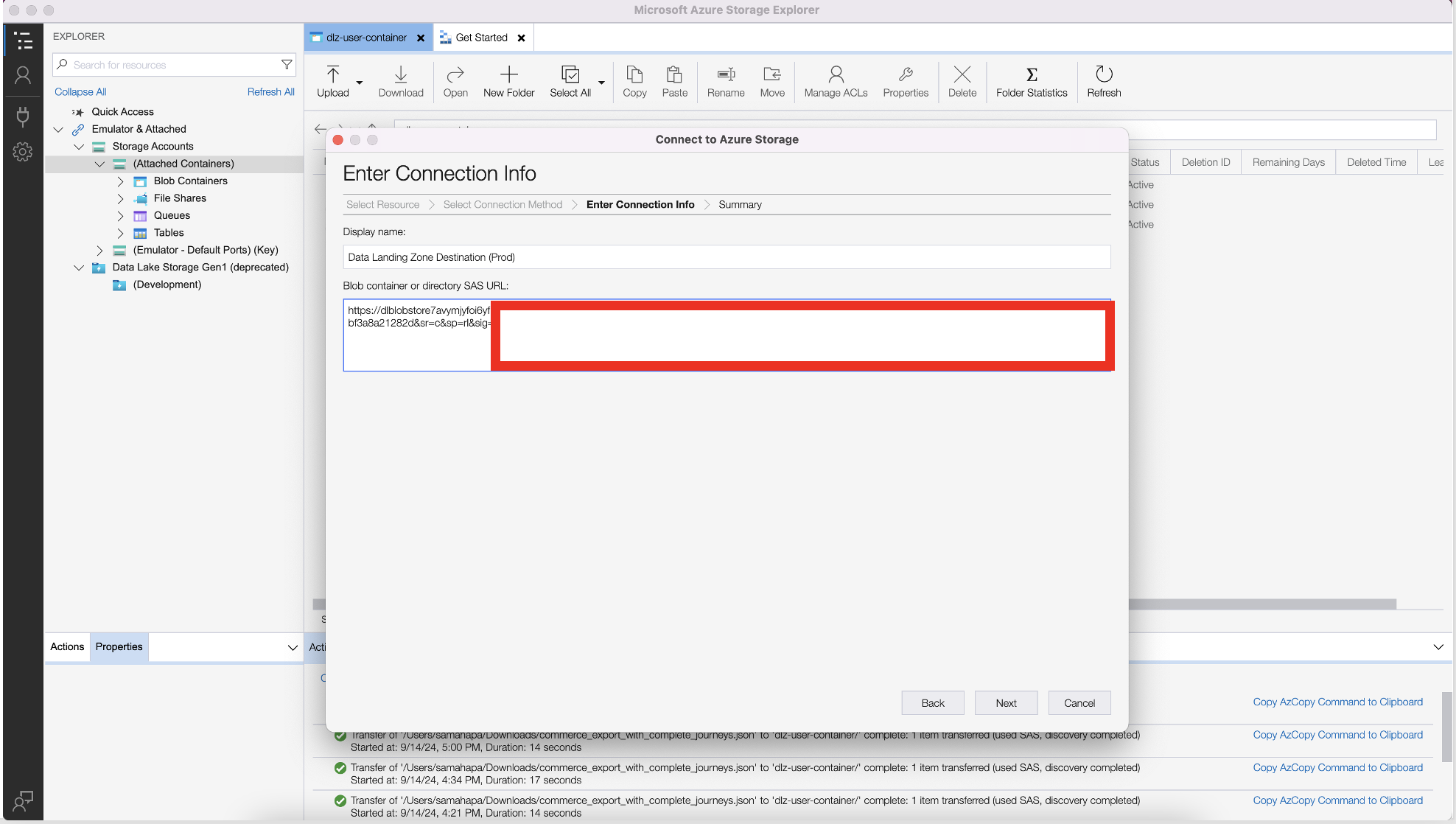
2. Setup the Azure Storage Explorer by following the pictures in sequence

<figure><img src="https://1899859430-files.gitbook.io/~/files/v0/b/gitbook-x-prod.appspot.com/o/spaces%2FEhcgqFIfGdE0GXJzi5yR%2Fuploads%2FJXbkGIASSexnbBjuRR18%2FScreen%20Shot%202024-09-21%20at%2011.00.11%20PM.png?alt=media&#x26;token=bcd28178-8a6d-448e-9266-ac6747adb2aa" alt=""><figcaption><p>Click on the <strong>plug icon</strong></p></figcaption></figure>

<figure><img src="https://1899859430-files.gitbook.io/~/files/v0/b/gitbook-x-prod.appspot.com/o/spaces%2FEhcgqFIfGdE0GXJzi5yR%2Fuploads%2F1oWmkQSFcHUMAjqWtTJe%2FScreen%20Shot%202024-09-21%20at%2010.57.41%20PM.png?alt=media&#x26;token=ed194d7e-33f3-4a51-a80d-487f52cde206" alt=""><figcaption><p>Click on ADLS Gen2 container or directory</p></figcaption></figure>

<figure><img src="https://1899859430-files.gitbook.io/~/files/v0/b/gitbook-x-prod.appspot.com/o/spaces%2FEhcgqFIfGdE0GXJzi5yR%2Fuploads%2FoWRyotpUDIQrCkZJpguI%2FScreen%20Shot%202024-09-21%20at%2010.52.38%20PM.png?alt=media&#x26;token=8651e6ba-75c4-43ec-ac34-3f845e9126f7" alt=""><figcaption><p>Choose SAS URI option</p></figcaption></figure>

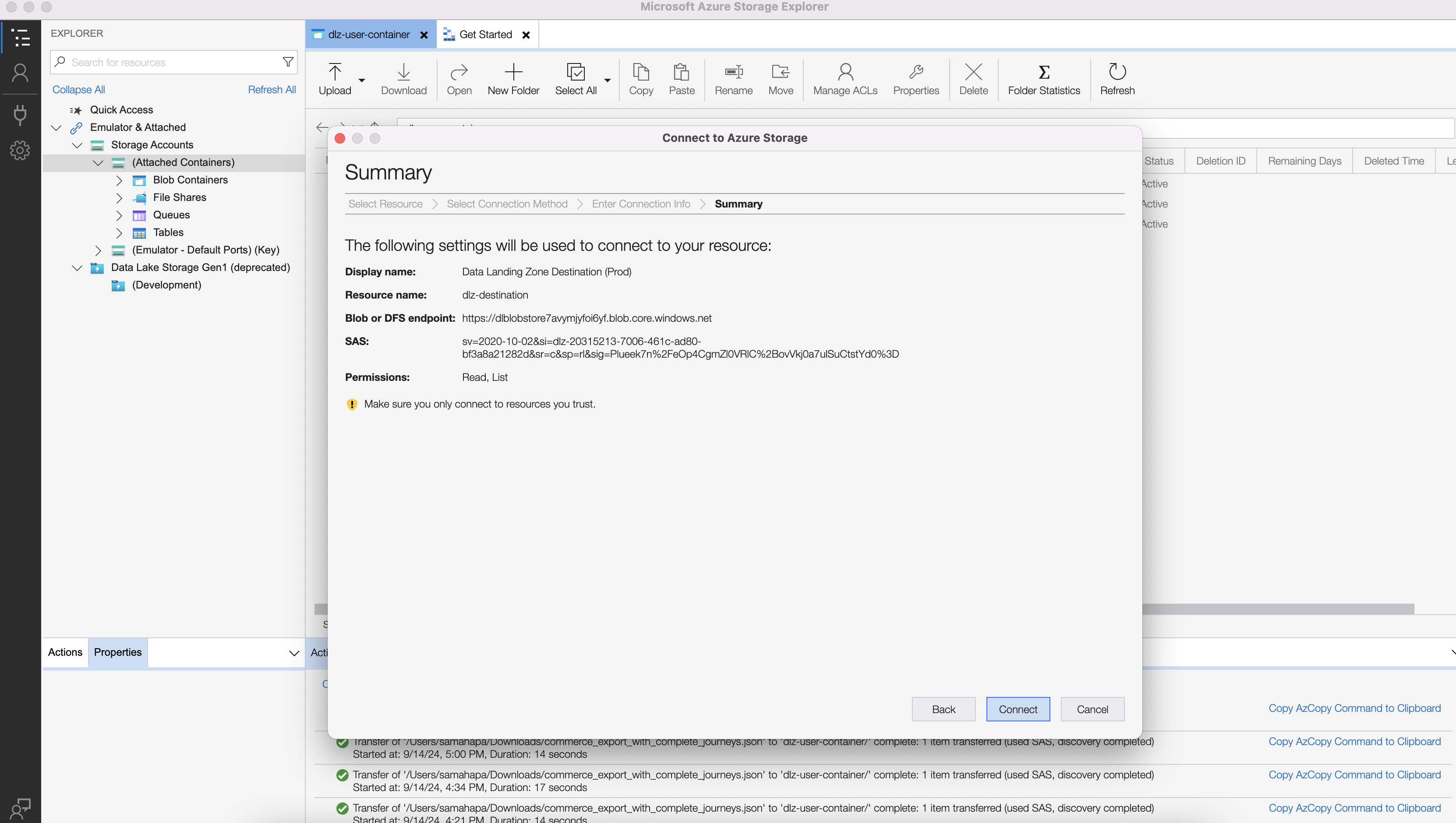
<figure><img src="https://1899859430-files.gitbook.io/~/files/v0/b/gitbook-x-prod.appspot.com/o/spaces%2FEhcgqFIfGdE0GXJzi5yR%2Fuploads%2FAk5QSptHqGz2iSXbid5v%2FScreen%20Shot%202024-09-21%20at%2010.57.51%20PM.png?alt=media&#x26;token=3a301218-47f4-4c30-b372-fbef7e05f1ff" alt=""><figcaption><p>Copy the SAS URI and choose a name for the DLZ container. Note that the SAS URI is copied from the results of the execution of the Python code above.</p></figcaption></figure>

<figure><img src="https://1899859430-files.gitbook.io/~/files/v0/b/gitbook-x-prod.appspot.com/o/spaces%2FEhcgqFIfGdE0GXJzi5yR%2Fuploads%2FbEHXRUX9MU6VSgBY639U%2FScreen%20Shot%202024-09-21%20at%2010.54.06%20PM.png?alt=media&#x26;token=4a84af9d-a98d-478a-8f80-f06d50066cb0" alt=""><figcaption><p>Click on Connect</p></figcaption></figure>

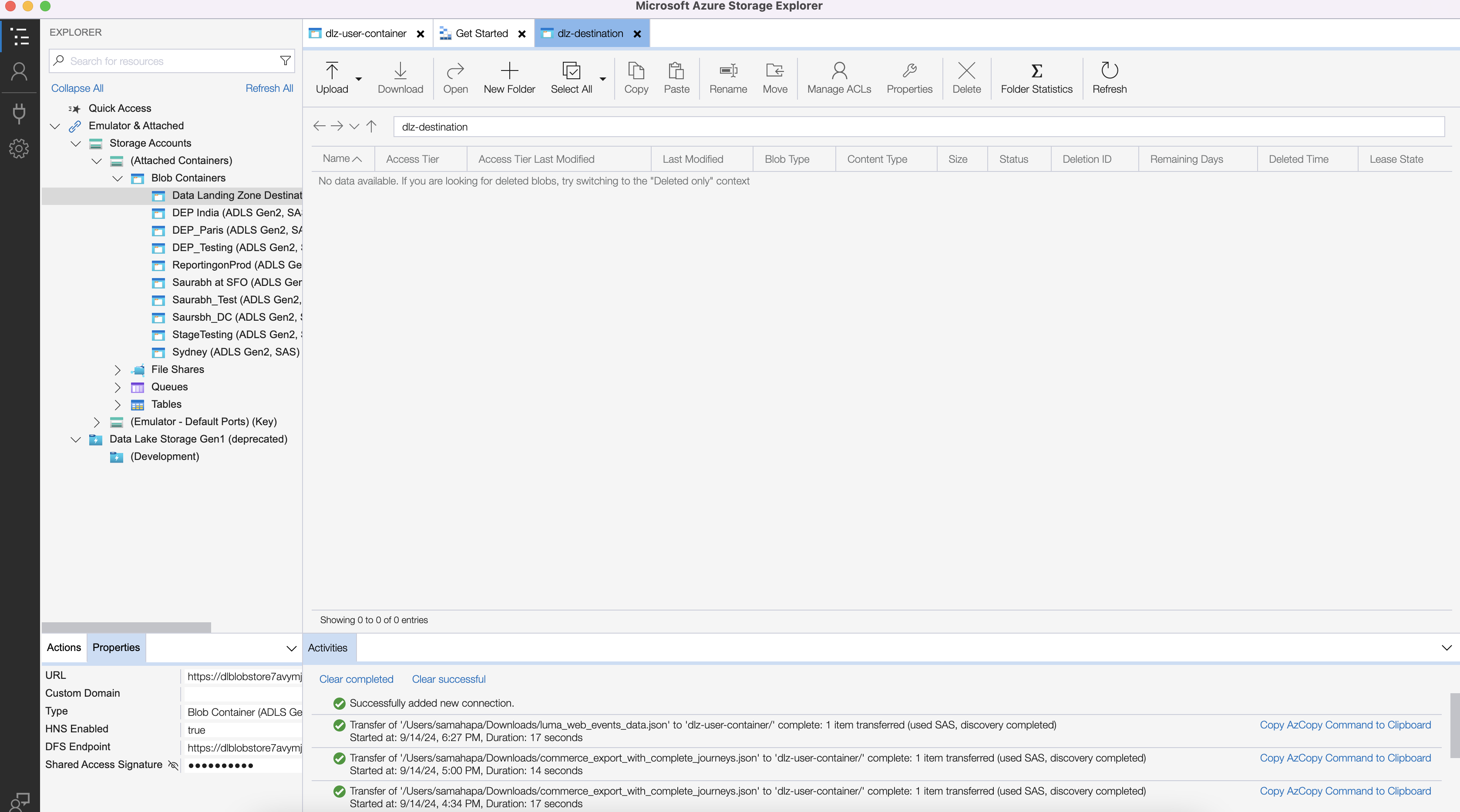
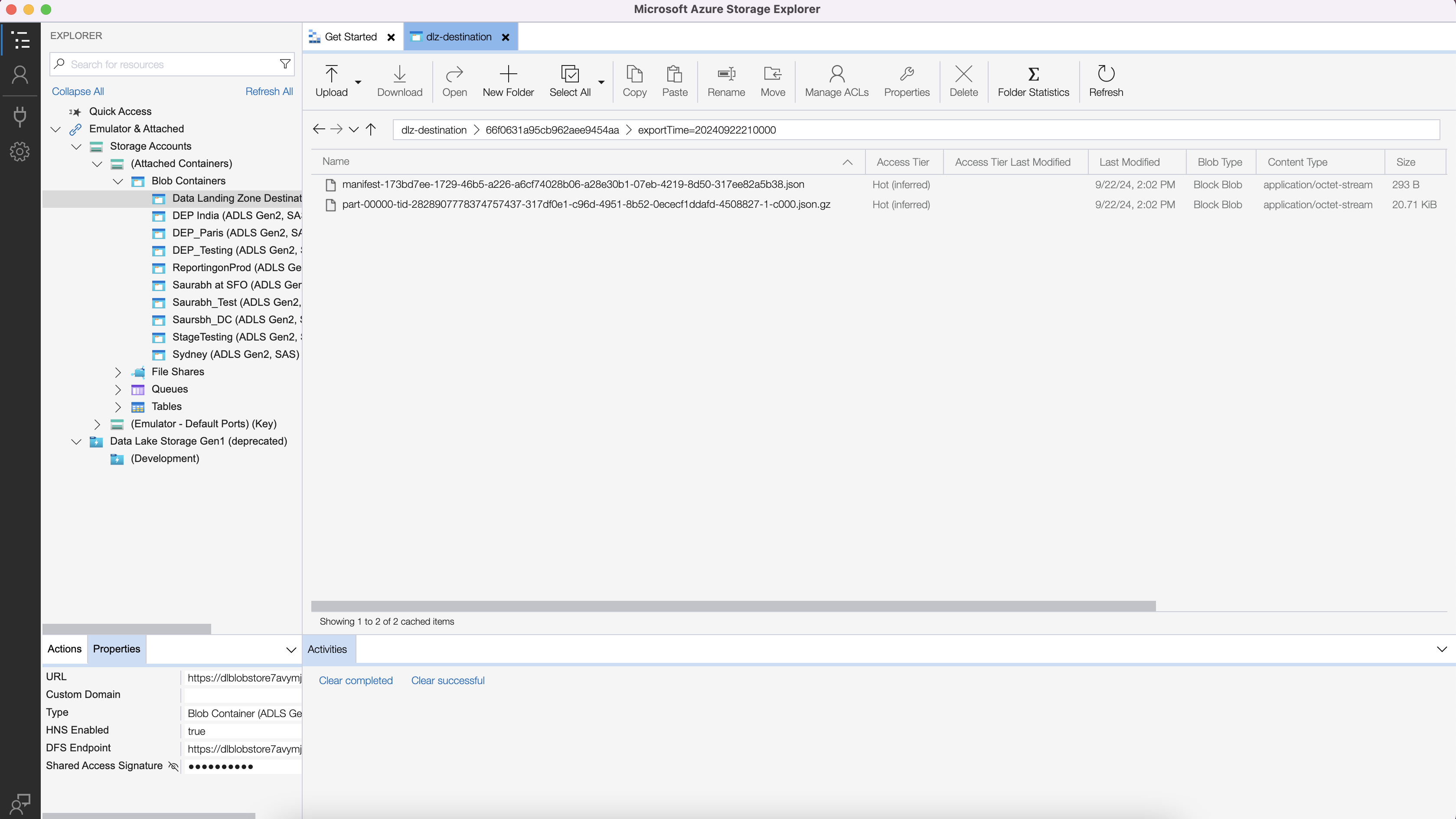
<figure><img src="https://1899859430-files.gitbook.io/~/files/v0/b/gitbook-x-prod.appspot.com/o/spaces%2FEhcgqFIfGdE0GXJzi5yR%2Fuploads%2FAyqQEd8KBJNfMxgqDKrV%2FScreen%20Shot%202024-09-21%20at%2010.54.21%20PM.png?alt=media&#x26;token=445358e2-51cb-4382-b7f4-722423fc8519" alt=""><figcaption><p>Connection is complete. You should see the files exported here,</p></figcaption></figure>

## Upload the Data Distiller Derived Dataset

We are going to use the derived dataset that wee created in the following tutorial:

{% content-ref url="broken-reference" %}
[Broken link](https://data-distilller.gitbook.io/adobe-data-distiller-guide/unit-9-data-distiller-activation-and-data-export/broken-reference)
{% endcontent-ref %}

The CSV file is generated from the **`RFM_MODEL_SEGMENT`** View:

{% file src="<https://1899859430-files.gitbook.io/~/files/v0/b/gitbook-x-prod.appspot.com/o/spaces%2FEhcgqFIfGdE0GXJzi5yR%2Fuploads%2FlE0laBXIsyiuFJmhuJst%2Frfm_export.csv?alt=media&token=49d881d4-2c54-47e4-b86b-6ac48789fb37>" %}

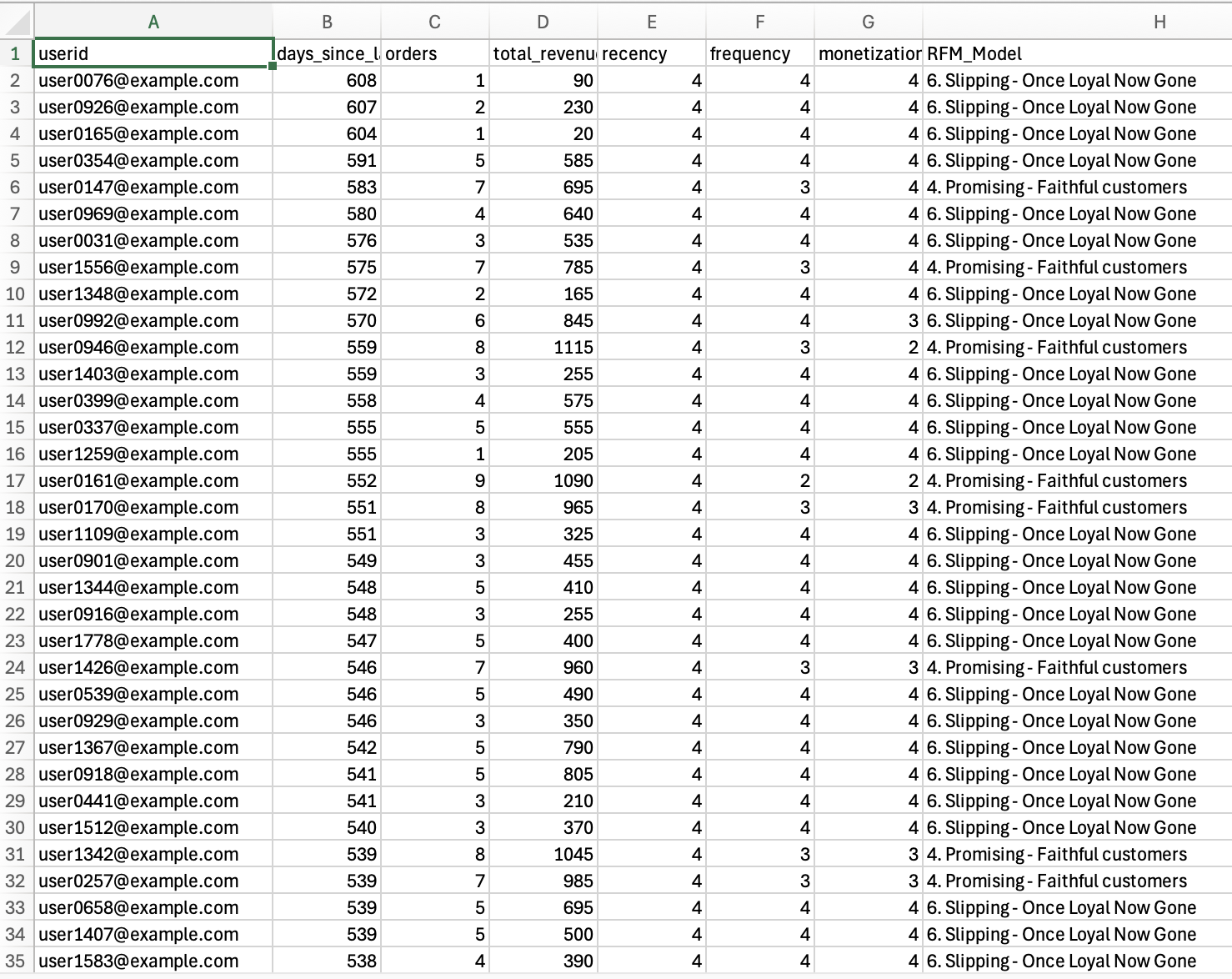
If you have not completed the tutorial, then follow the steps [here ](https://data-distiller.all-stuff-data.com/prereq-105-ingesting-csv-data-into-adobe-experience-platform)to upload the CSV file. Name the dataset as **`RFM_SEGMENT_MODEL.`** It looks like this:

<figure><img src="https://1899859430-files.gitbook.io/~/files/v0/b/gitbook-x-prod.appspot.com/o/spaces%2FEhcgqFIfGdE0GXJzi5yR%2Fuploads%2FRuuiJ9c6HfO9WuJnV3rr%2FScreen%20Shot%202024-09-22%20at%201.49.44%20PM.png?alt=media&#x26;token=32e4f041-febf-41d1-8285-018debacc18a" alt=""><figcaption><p>RFM data with anonymized email</p></figcaption></figure>

## Set up the Activation

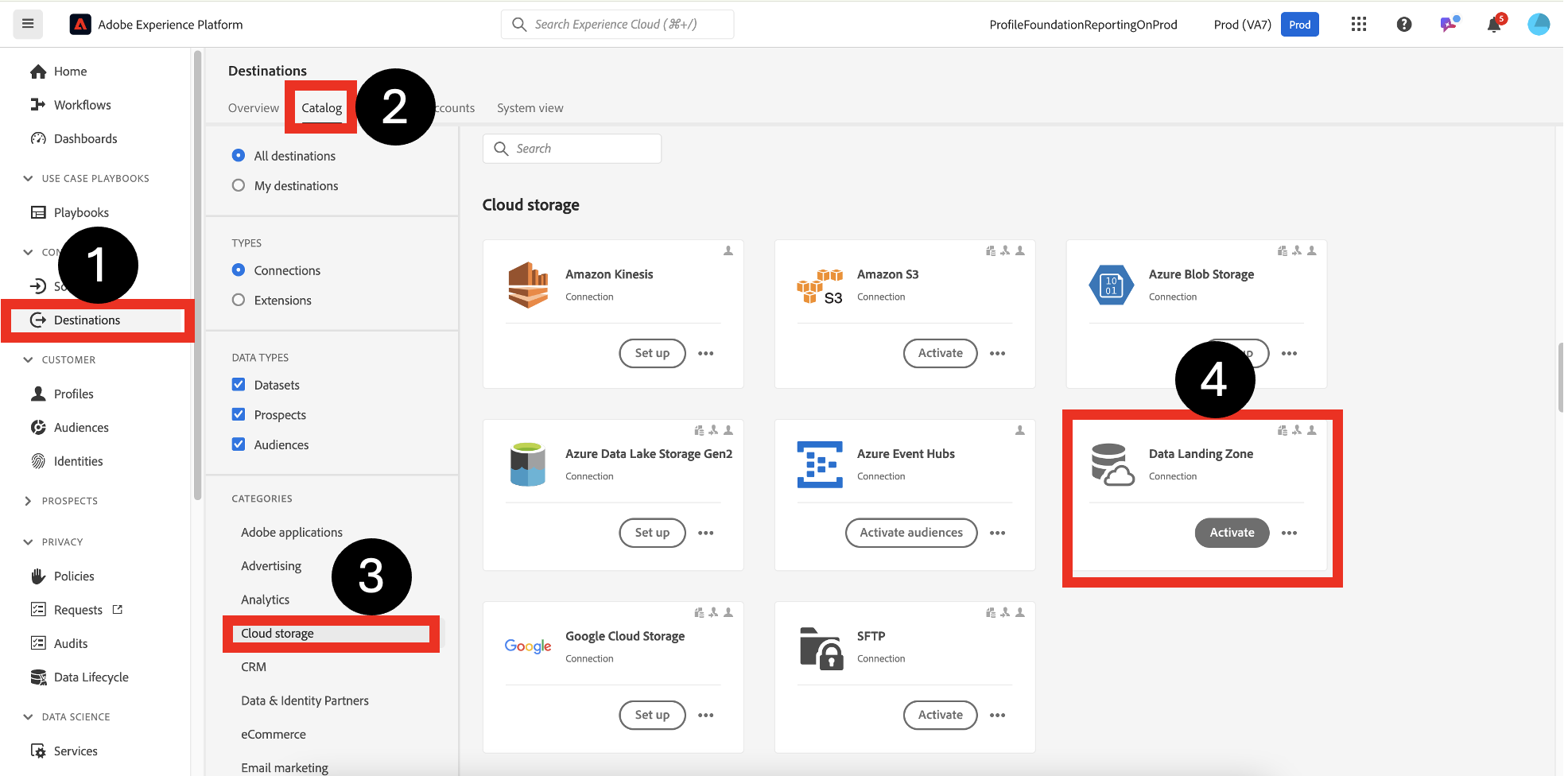
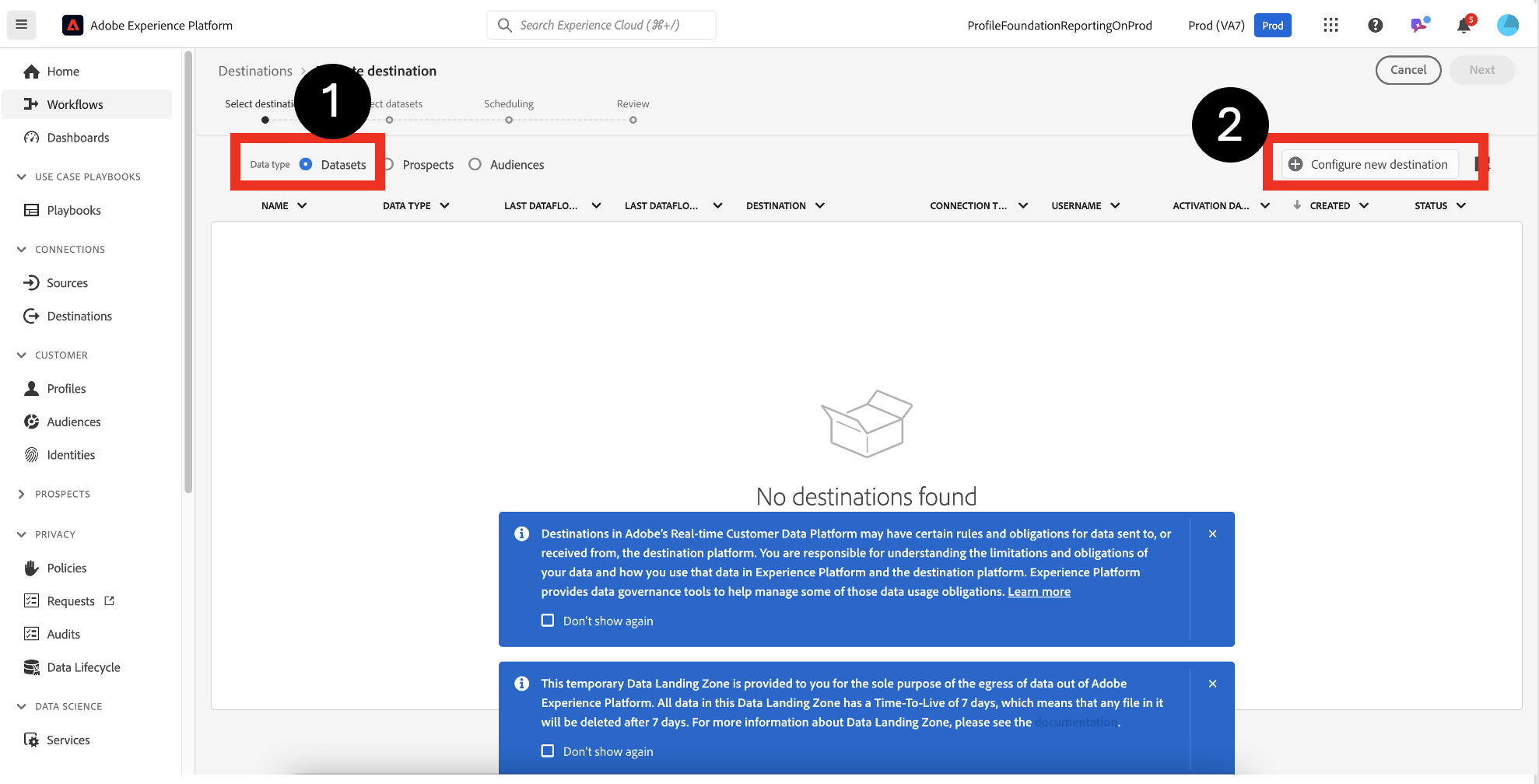
1. Navigate to **Connections->Destinations->Catalog->Cloud Storage->Data Landing Zone.** Click **Activate.**

<figure><img src="https://1899859430-files.gitbook.io/~/files/v0/b/gitbook-x-prod.appspot.com/o/spaces%2FEhcgqFIfGdE0GXJzi5yR%2Fuploads%2FUWCUk0mWaAXrLGo2LAUk%2FScreen%20Shot%202024-09-21%20at%2011.32.33%20PM.png?alt=media&#x26;token=e00378c8-97f6-48d3-86e9-a2efe5d00025" alt=""><figcaption><p>Navigate to <strong>Connections->Destinations->Catalog->Cloud Storage->Data Landing Zone.</strong> Click <strong>Activate.</strong></p></figcaption></figure>

2. Choose **Datasets** and **Configure Destinations**

<figure><img src="https://1899859430-files.gitbook.io/~/files/v0/b/gitbook-x-prod.appspot.com/o/spaces%2FEhcgqFIfGdE0GXJzi5yR%2Fuploads%2FyGZR6su5lPoX4llvjpUc%2FScreen%20Shot%202024-09-21%20at%2011.39.02%20PM.png?alt=media&#x26;token=376c7d38-39a2-418b-99f4-811770d1c3fa" alt=""><figcaption><p>Choose Datasets intead of audiences</p></figcaption></figure>

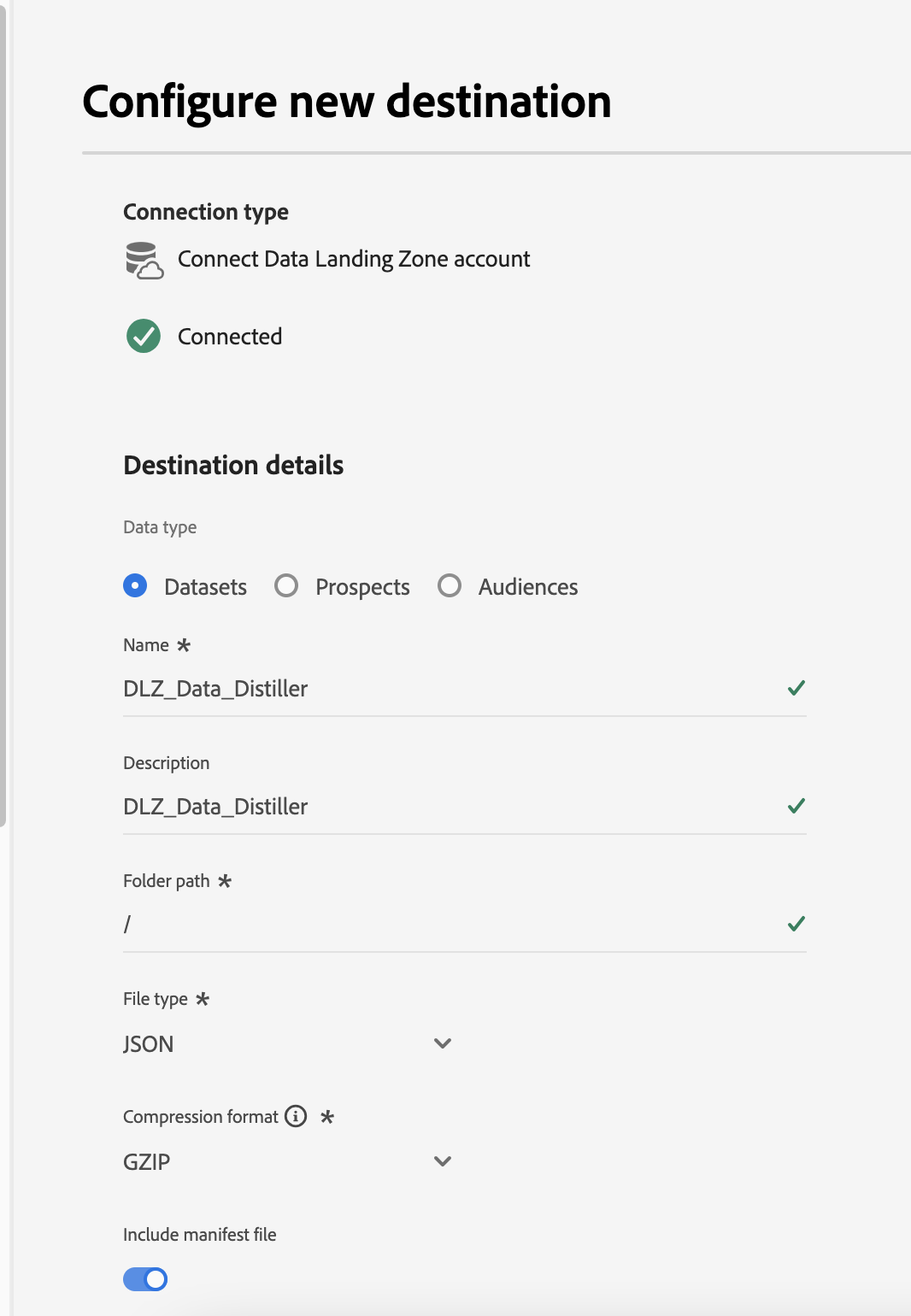
3. **Configure** the destination with the following parameters:
   1. **Datatype:** Choose **Datasets**
   2. **Name:** DLZ\_Data\_Distiller
   3. **Description:** Be descriptive or just use *DLZ\_Data\_Distiller*
   4. **Folder Path**:&#x20;
   5. **File Type:** JSON
   6. **Compressed Format:** GZIP. Gzip (GNU zip) is a popular file compression and decompression tool used to reduce the size of files, making them easier to store and transmit. You can use any unzip facility in the destination system to retrieve the raw contents.
   7. Include the **Manifest file.** Details about Manifest files for debugging are[ **here**](#a-note-on-manifest-files)**.**
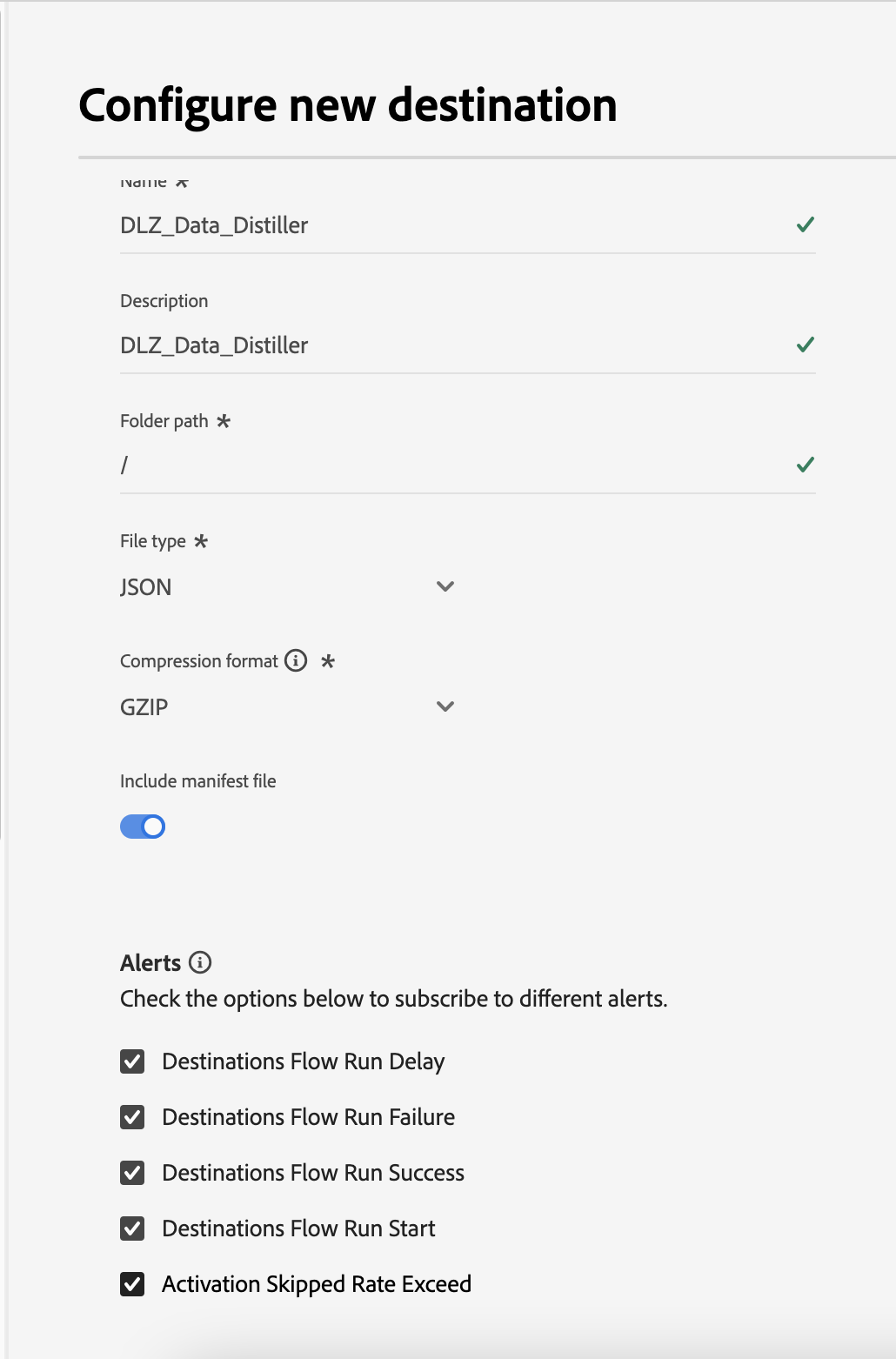
   8. **Turn on** all the alerts

<figure><img src="https://1899859430-files.gitbook.io/~/files/v0/b/gitbook-x-prod.appspot.com/o/spaces%2FEhcgqFIfGdE0GXJzi5yR%2Fuploads%2FLCa2xJtBJgFbT09WMuj8%2FScreen%20Shot%202024-09-22%20at%2012.02.46%20AM.png?alt=media&#x26;token=60f72d91-db3e-498c-83e6-73e6f642e4a4" alt=""><figcaption><p>Basic setup</p></figcaption></figure>

<figure><img src="https://1899859430-files.gitbook.io/~/files/v0/b/gitbook-x-prod.appspot.com/o/spaces%2FEhcgqFIfGdE0GXJzi5yR%2Fuploads%2FxKup7rUpqhlnni29l0uN%2FScreen%20Shot%202024-09-22%20at%2012.02.58%20AM.png?alt=media&#x26;token=15ae4f4c-47ff-47c7-8327-1c187b5f8ad6" alt=""><figcaption><p>Choose the alerts</p></figcaption></figure>

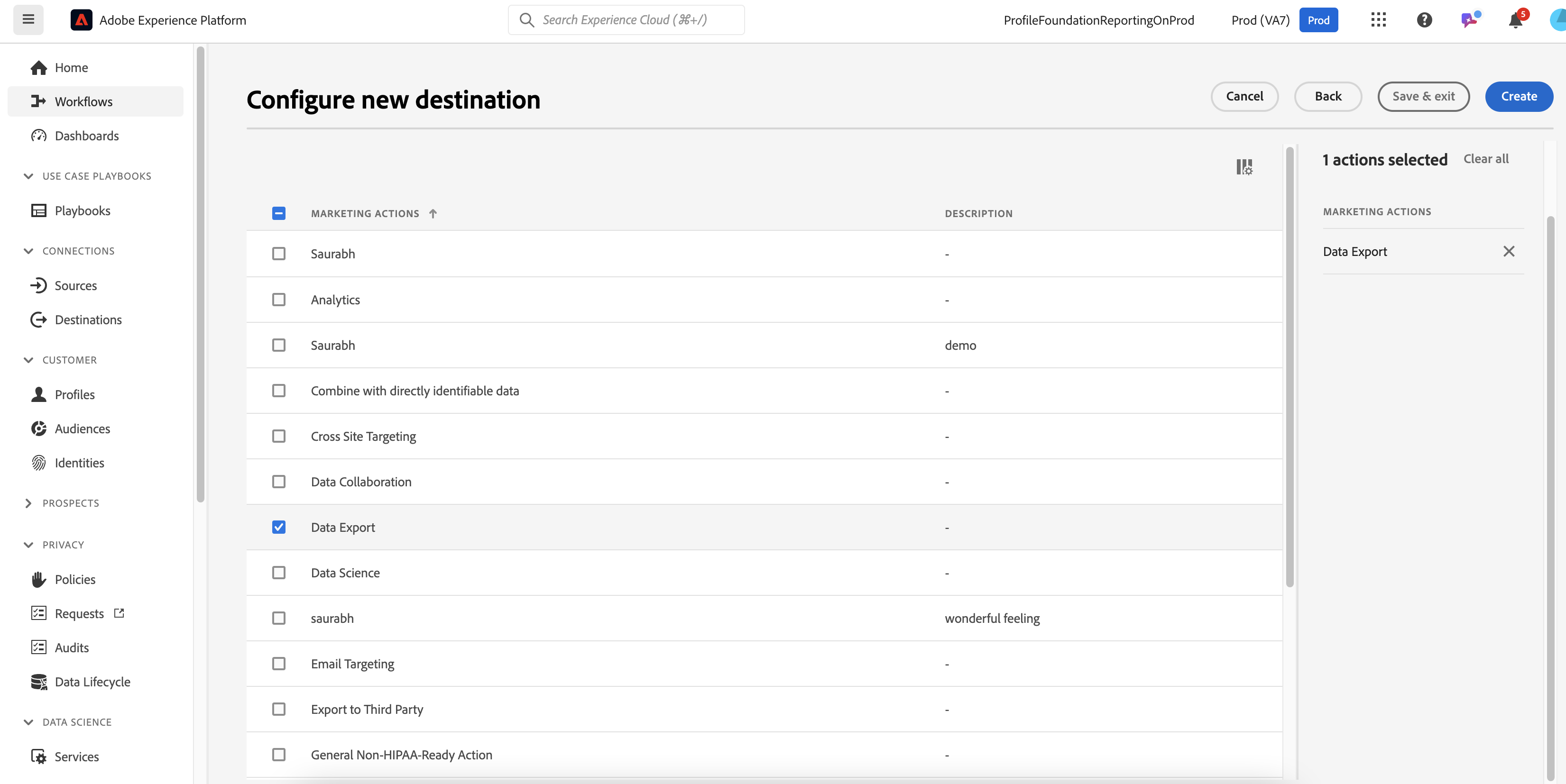
4. Choose **Data Export** Marketing Action. A more detailed discussion is there in DULE [section](#a-note-on-dule-data-export-marketing-action).

<figure><img src="https://1899859430-files.gitbook.io/~/files/v0/b/gitbook-x-prod.appspot.com/o/spaces%2FEhcgqFIfGdE0GXJzi5yR%2Fuploads%2FZk8EyeydVRv4d2FSAGB2%2FScreen%20Shot%202024-09-22%20at%2012.03.15%20AM.png?alt=media&#x26;token=d7c90d91-5221-414d-8269-90801a747ee0" alt=""><figcaption></figcaption></figure>

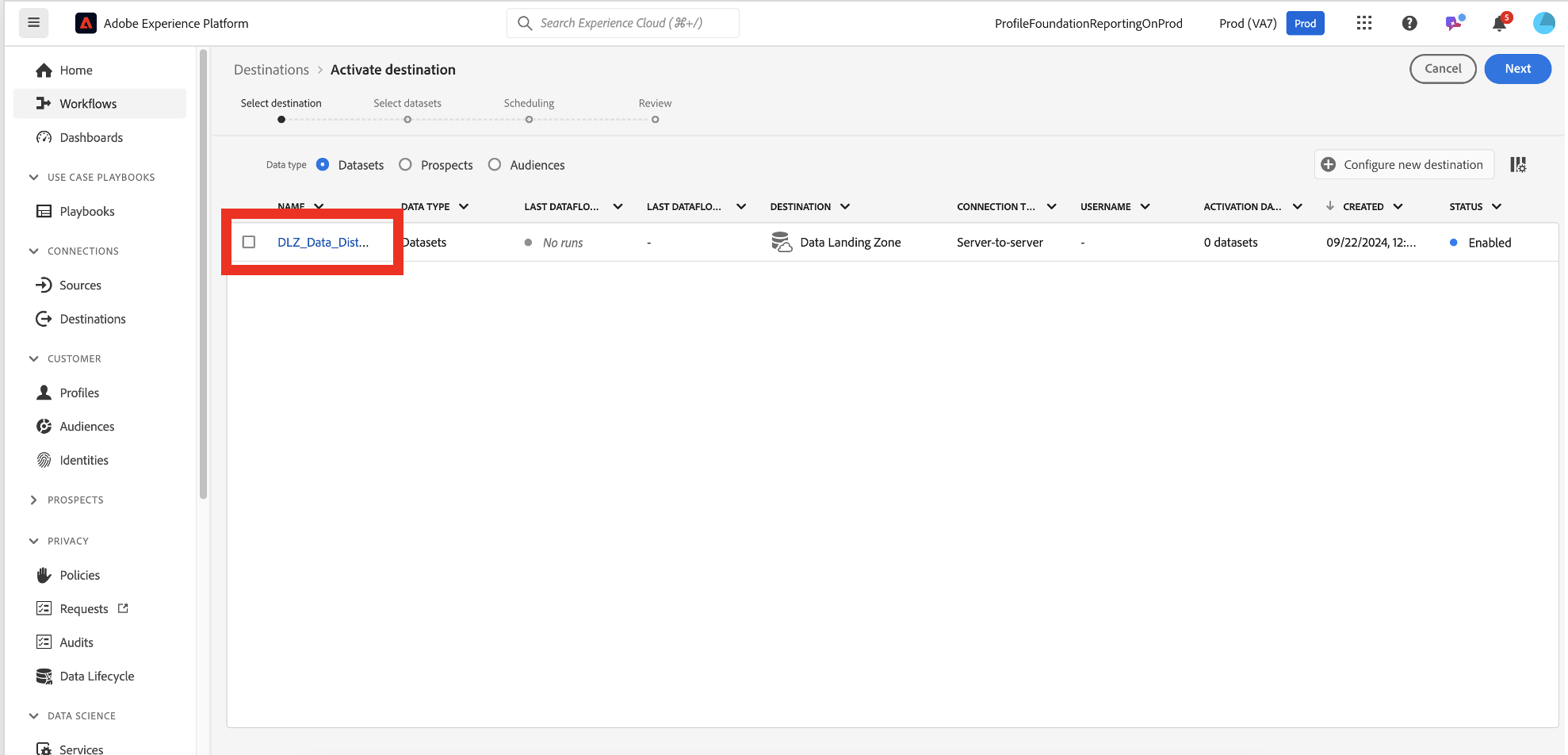
5. Click on the **Destination Flow** created:

<figure><img src="https://1899859430-files.gitbook.io/~/files/v0/b/gitbook-x-prod.appspot.com/o/spaces%2FEhcgqFIfGdE0GXJzi5yR%2Fuploads%2FuxOn3wb5Lsgm2rZJiRbi%2FScreen%20Shot%202024-09-22%20at%201.14.55%20PM.png?alt=media&#x26;token=cc330126-f208-44c4-8635-a4657d464623" alt=""><figcaption><p>Click on the <strong>Destination Account</strong> created.</p></figcaption></figure>

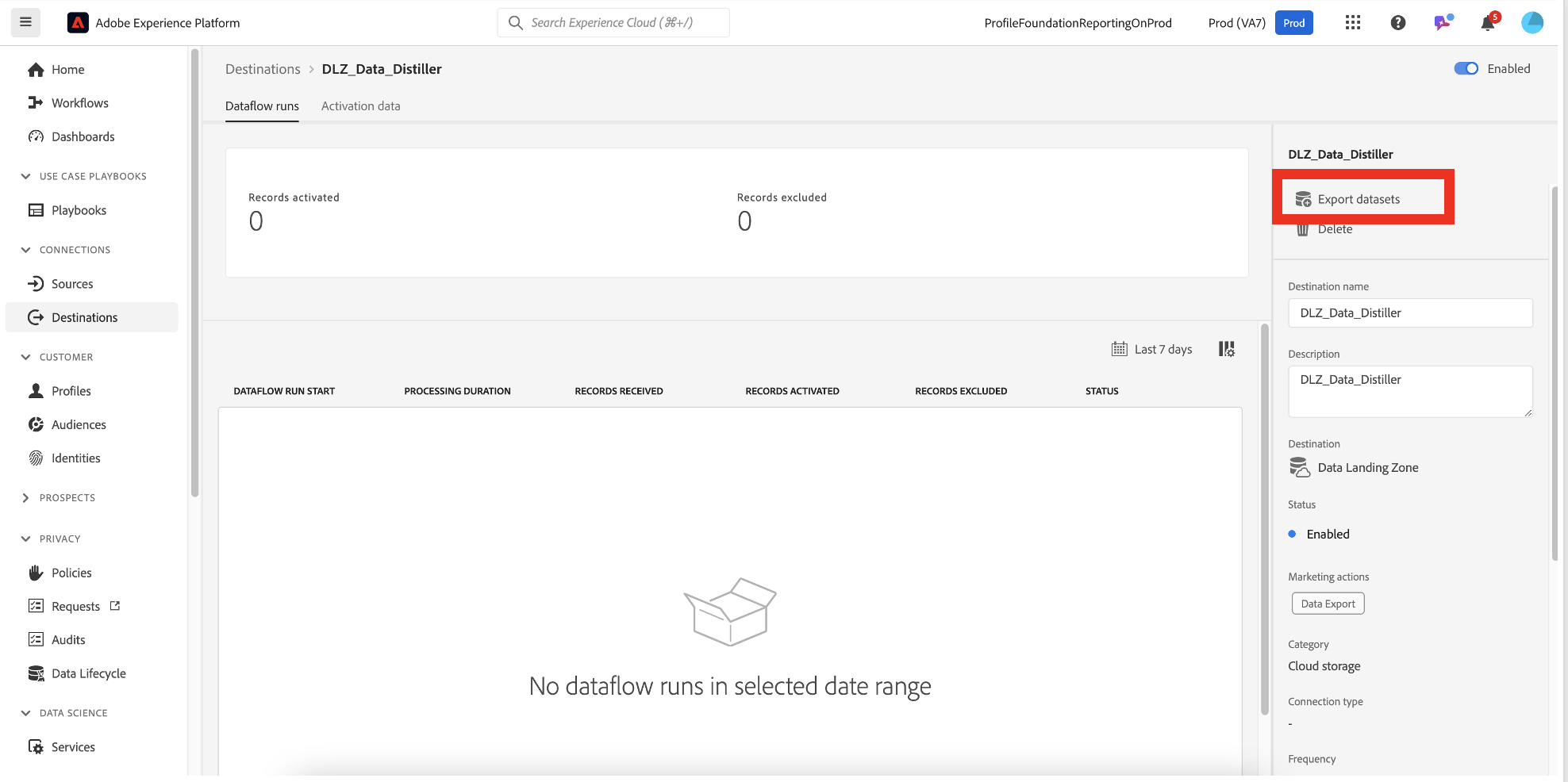
5. Click on **Export Datasets**

<figure><img src="https://1899859430-files.gitbook.io/~/files/v0/b/gitbook-x-prod.appspot.com/o/spaces%2FEhcgqFIfGdE0GXJzi5yR%2Fuploads%2F1nLvp4QZmBxFQR0RVKrF%2FScreen%20Shot%202024-09-22%20at%201.15.14%20PM.png?alt=media&#x26;token=ed67757b-4232-4f42-a77a-682e4f0509c3" alt=""><figcaption><p>Export datasets</p></figcaption></figure>

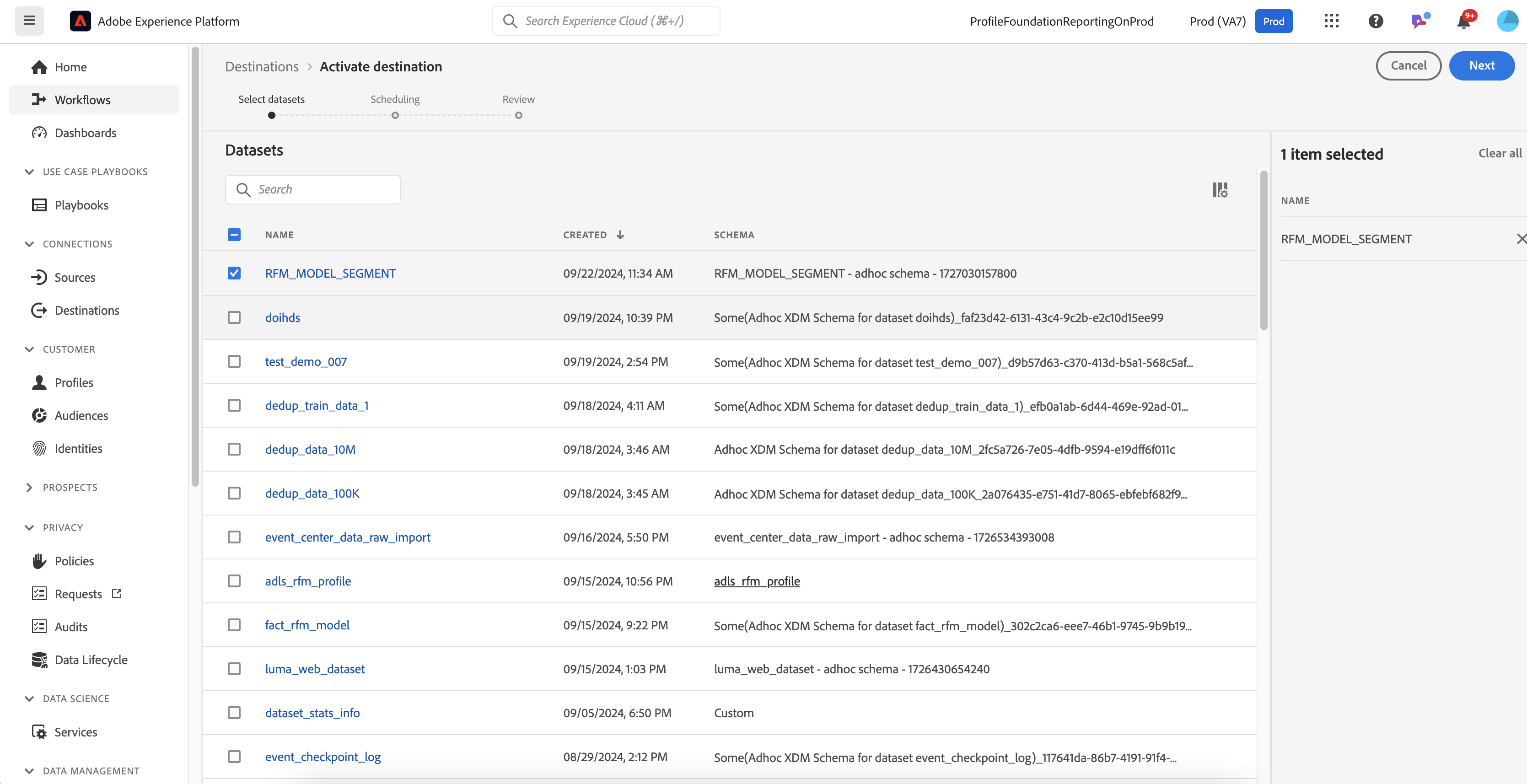
5. Choose **RFM\_MODEL\_SEGMENT** dataset to export

<figure><img src="https://1899859430-files.gitbook.io/~/files/v0/b/gitbook-x-prod.appspot.com/o/spaces%2FEhcgqFIfGdE0GXJzi5yR%2Fuploads%2Fo3rEUdH88aKiXMv6k9Ir%2FScreen%20Shot%202024-09-22%20at%2012.01.49%20PM.png?alt=media&#x26;token=6eef1988-ba2b-4234-b655-6d0f6643f8df" alt=""><figcaption><p>Choose <strong>RFM_MODEL_SEGMENT</strong> dataset to export</p></figcaption></figure>

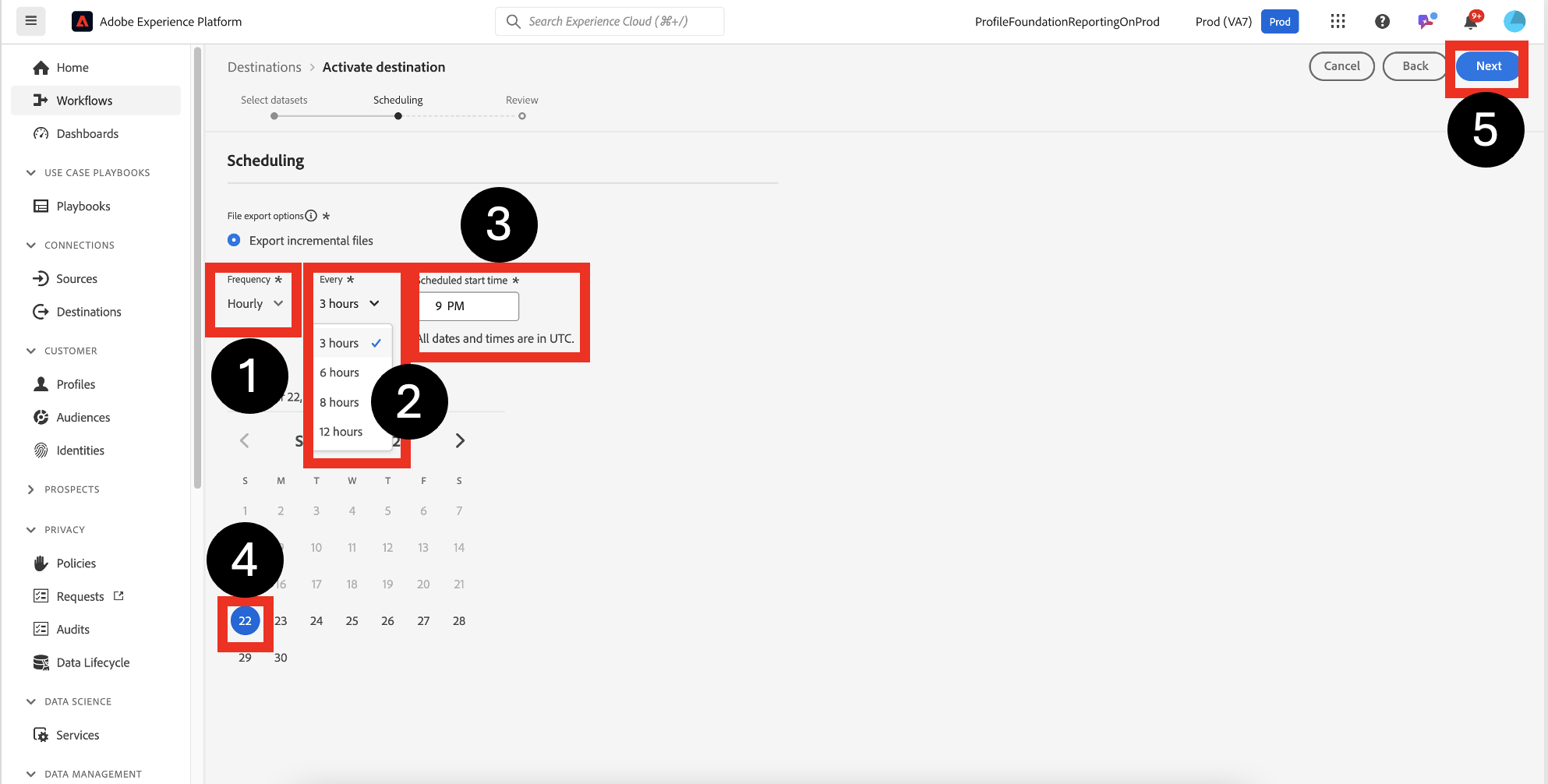
7. Configure the **Batch Schedule**
   1. **Frequency:** Change it from the default **Daily** setting to **Hourly.**&#x20;
   2. **Pacing:** Choose 3 hours
   3. **Scheduled start time:** It will automatically select the closest available time for you—please do not modify it. Keep in mind, all times are in UTC.&#x20;
   4. **Date:** The current date will automatically be to today's date.&#x20;
   5. Click **Next**
   6. **Incremental Export:** Keep in mind that the data export is processed incrementally, with the first batch job uploading the complete file.

{% hint style="info" %}
**Adobe Experience Platform** schedule times are always set in UTC (Coordinated Universal Time) which has tradeoffs.\
\
&#x20;UTC has these advantages:

* **Global Consistency**: UTC provides a single, consistent reference point for time across all regions. This eliminates confusion when dealing with your users operating in different time zones.
* **Simplified Scheduling**: Having a unified time standard simplifies scheduling, particularly for global teams, as you avoid needing to adjust for daylight saving time or other regional time changes.
* **Accurate Execution**: Since UTC is not affected by time zone shifts, setting schedules in UTC ensures that processes, like data ingestion or activation, run accurately and consistently.
* **Easier Debugging**: Using a single time zone for all scheduled events makes tracking, logging, and debugging system events much simpler, as all timestamps are directly comparable.

Disadvantages of using UTC include the need for time zone conversions, potential confusion for non-technical users, manual adjustments for Daylight Saving Time, and a higher risk of human error in scheduling.

By executing the following command in Data Distiller, your local time will be converted to UTC, giving you a clear idea of when the schedule will run:&#x20;

**`SELECT from_unixtime(unix_timestamp()) AS utc_time;`**

&#x20;The above query converts the current Unix timestamp to UTC, which is not affected by daylight saving time. UTC remains constant throughout the year, so this query will always return the time in UTC regardless of local time zone changes.
{% endhint %}

<figure><img src="https://1899859430-files.gitbook.io/~/files/v0/b/gitbook-x-prod.appspot.com/o/spaces%2FEhcgqFIfGdE0GXJzi5yR%2Fuploads%2F7YITIa1USKQ6asQYAab0%2FScreen%20Shot%202024-09-22%20at%2012.40.53%20PM.png?alt=media&#x26;token=c3e2fddd-114b-4695-9eb1-c2d7cb1b64f4" alt=""><figcaption><p>Configure the schedule</p></figcaption></figure>

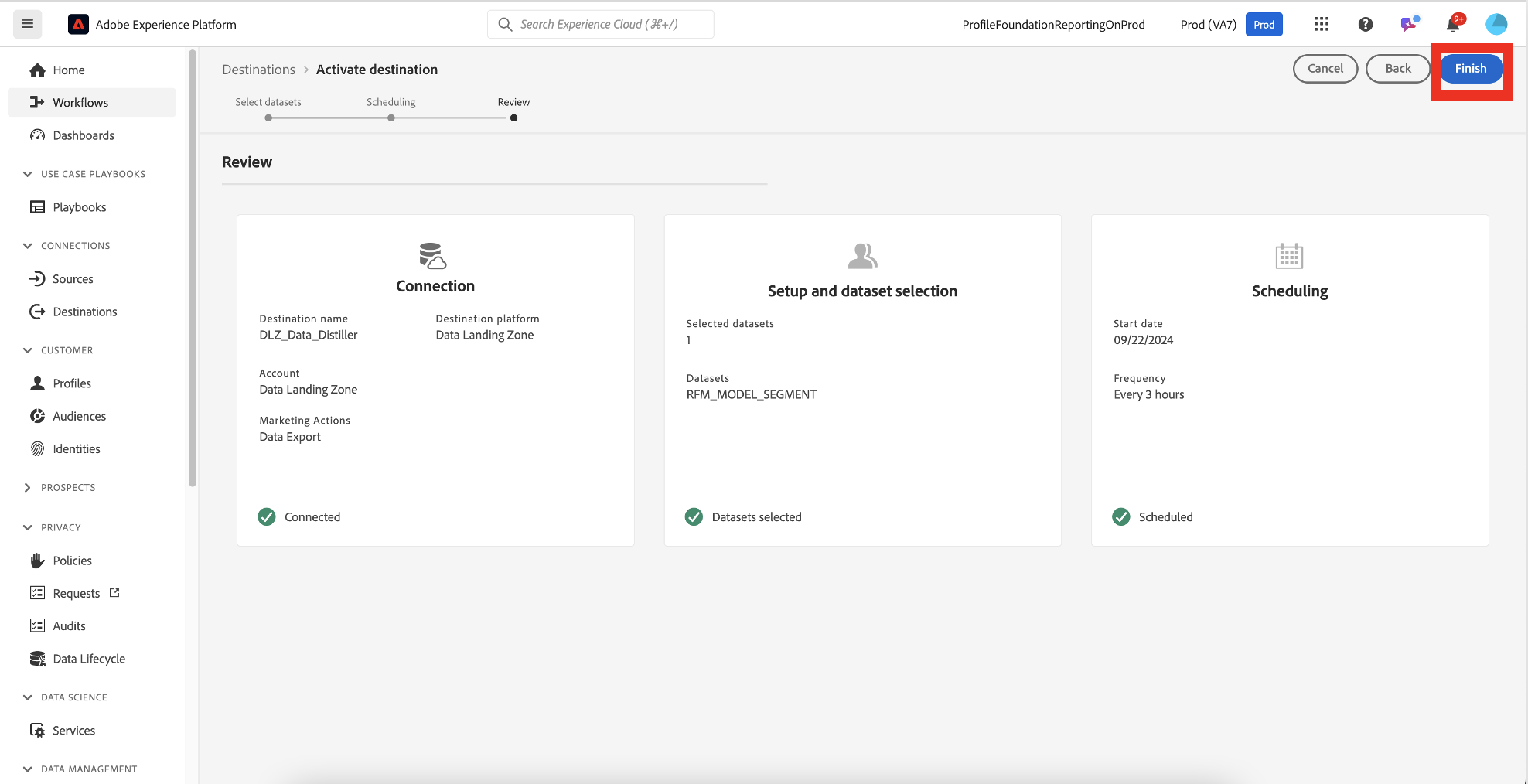
9. Click **Finish** to complete the setup.

<figure><img src="https://1899859430-files.gitbook.io/~/files/v0/b/gitbook-x-prod.appspot.com/o/spaces%2FEhcgqFIfGdE0GXJzi5yR%2Fuploads%2FjwKBoop190A7O0JeTxfq%2FScreen%20Shot%202024-09-22%20at%2012.35.19%20PM.png?alt=media&#x26;token=2fbda522-3b5c-4686-8f6f-e8ef40193c67" alt=""><figcaption><p>Click <strong>Finish</strong> to complete the setup</p></figcaption></figure>

## Monitor the Destination Flow

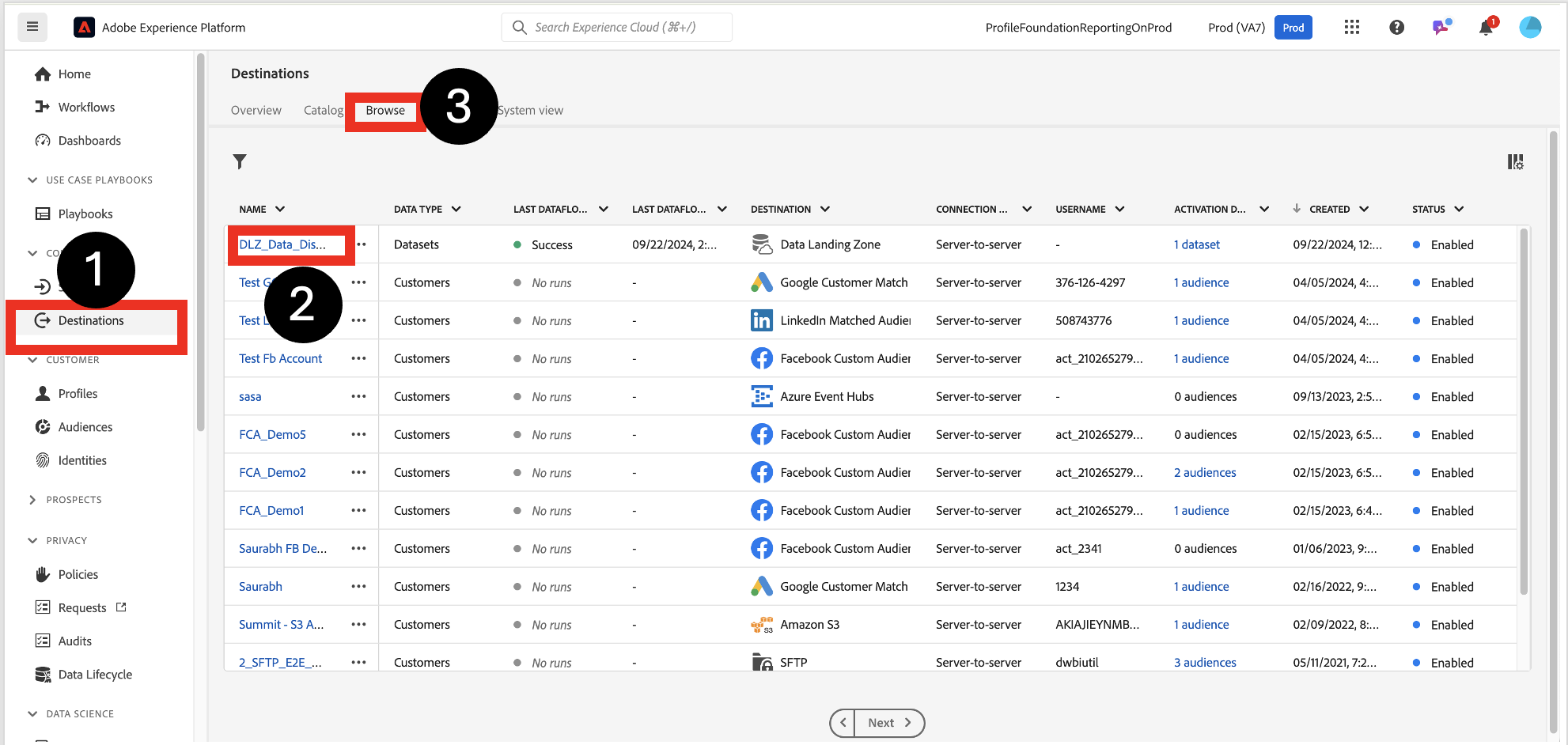
1. Click on **Destinations->Browse->DLZ\_Data\_Distiller** flow

<figure><img src="https://1899859430-files.gitbook.io/~/files/v0/b/gitbook-x-prod.appspot.com/o/spaces%2FEhcgqFIfGdE0GXJzi5yR%2Fuploads%2FbgLs8c0uzkqGiZxqftWT%2FScreen%20Shot%202024-09-22%20at%202.30.57%20PM.png?alt=media&#x26;token=e95549c7-c194-4a14-a28d-a84f6332de18" alt=""><figcaption><p>Click on <strong>Destinations->Browse->DLZ_Data_Distiller</strong> flow</p></figcaption></figure>

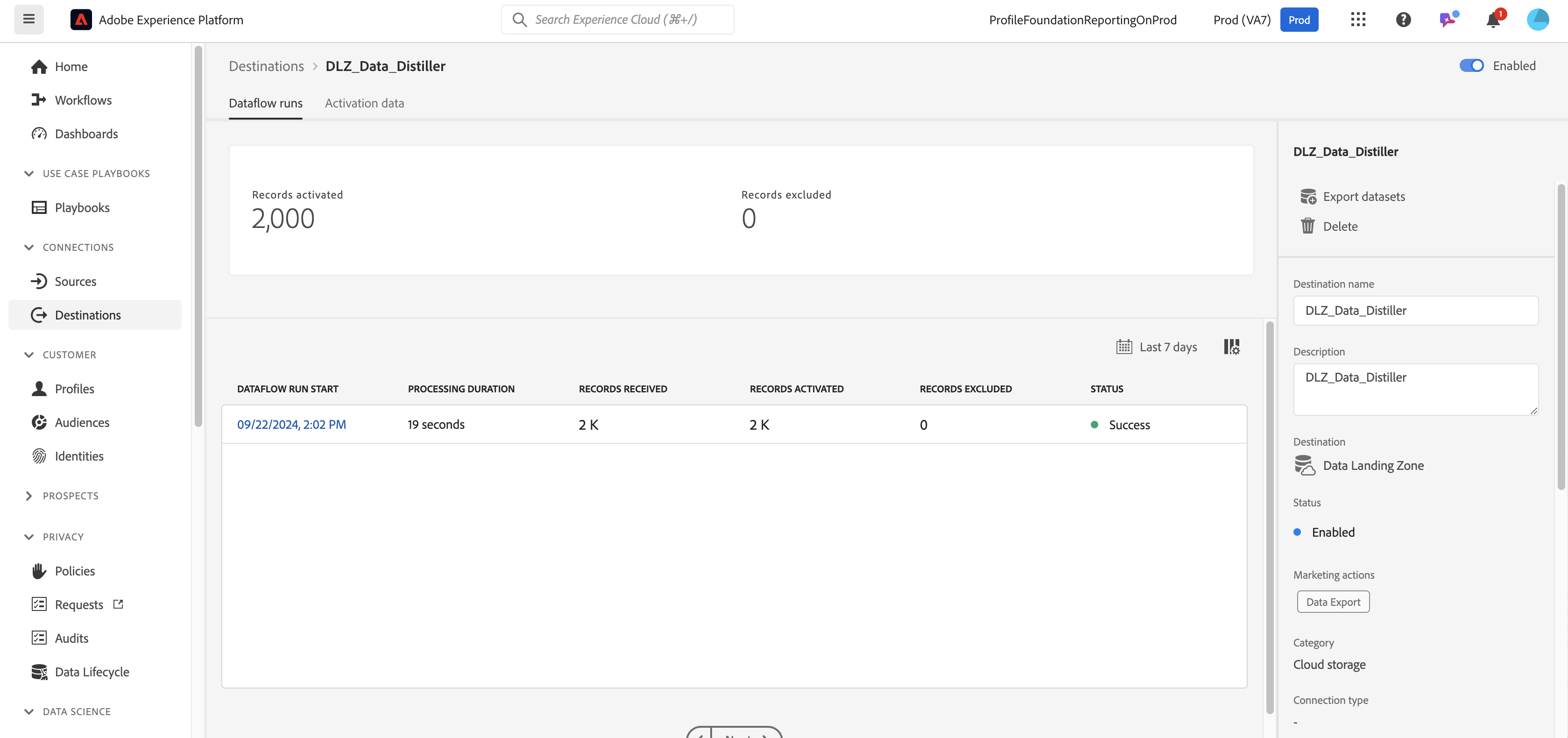
2. You should see the following status:

<figure><img src="https://1899859430-files.gitbook.io/~/files/v0/b/gitbook-x-prod.appspot.com/o/spaces%2FEhcgqFIfGdE0GXJzi5yR%2Fuploads%2FqObT73mSuPyDl79cBkXf%2FScreen%20Shot%202024-09-22%20at%202.28.09%20PM.png?alt=media&#x26;token=ef1f5281-4fa6-463c-8530-7c6f6ddc130e" alt=""><figcaption><p>Successful export</p></figcaption></figure>

## Download the Data from Azure Storage Explorer

1. If the data export confirmation in the Adobe Experience Platform (AEP) UI is successful but the data doesn't appear in **Azure Storage Explorer**, try refreshing your session first. If the data still isn't visible, attempt to reconnect to your Azure Storage account. If issues persist, simply relaunch the Azure Storage Explorer application to resolve any session problems and display the newly exported data.
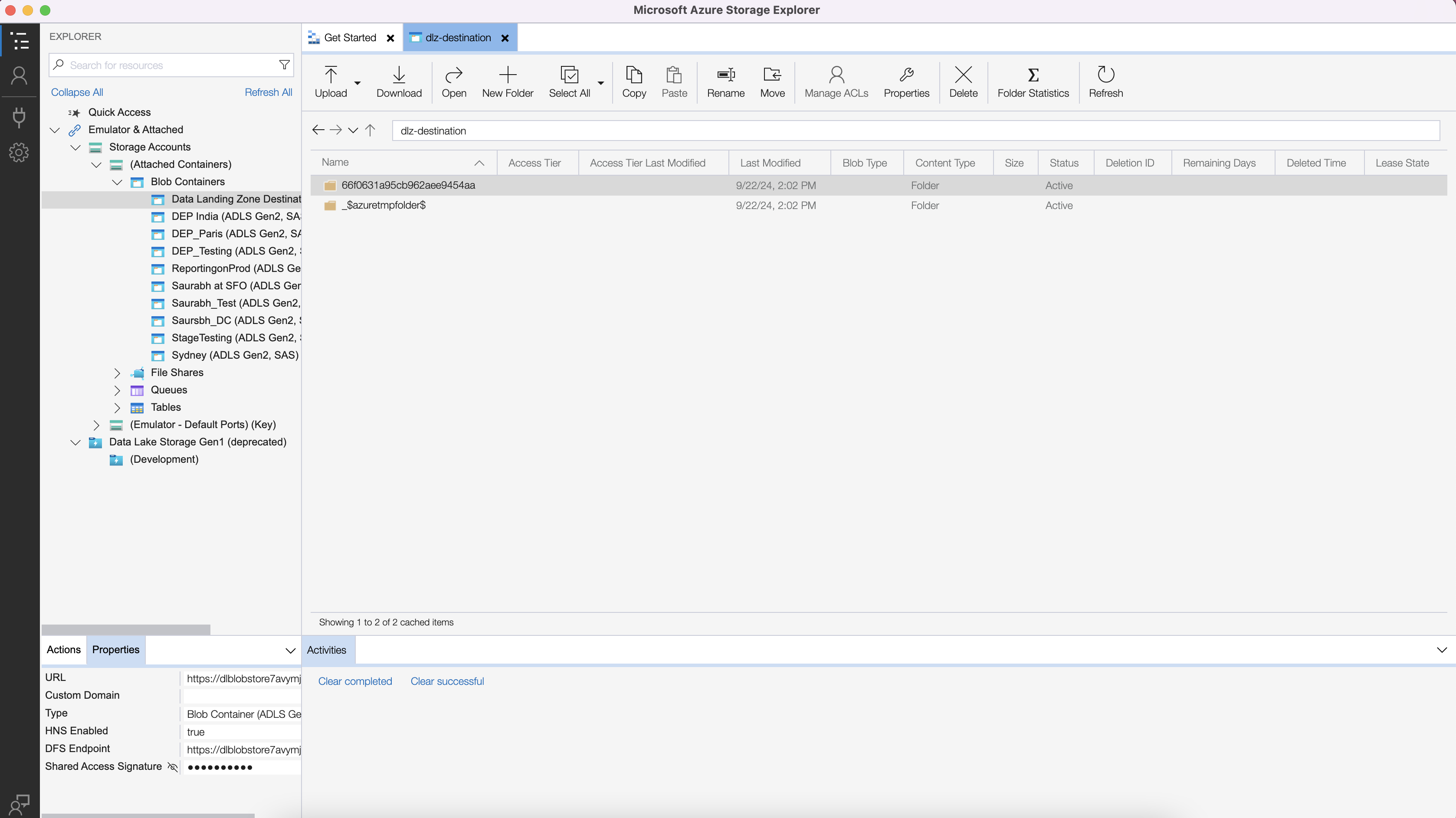
2. Your Storage Explorer UI should look like this:

<figure><img src="https://1899859430-files.gitbook.io/~/files/v0/b/gitbook-x-prod.appspot.com/o/spaces%2FEhcgqFIfGdE0GXJzi5yR%2Fuploads%2F5UKWRQUs46TCeRAspW3I%2FScreen%20Shot%202024-09-22%20at%202.36.05%20PM.png?alt=media&#x26;token=aea8058e-462e-4714-82c5-93553297a9b6" alt=""><figcaption><p>New folders are created</p></figcaption></figure>

3\. Navigate down into the folders:

<figure><img src="https://1899859430-files.gitbook.io/~/files/v0/b/gitbook-x-prod.appspot.com/o/spaces%2FEhcgqFIfGdE0GXJzi5yR%2Fuploads%2FeDM6koPk3SOx0JySxSk6%2FScreen%20Shot%202024-09-22%20at%202.36.20%20PM.png?alt=media&#x26;token=98408c9a-1a66-48e5-8205-28fb0dc20cbe" alt=""><figcaption><p>You should see the raw files.</p></figcaption></figure>

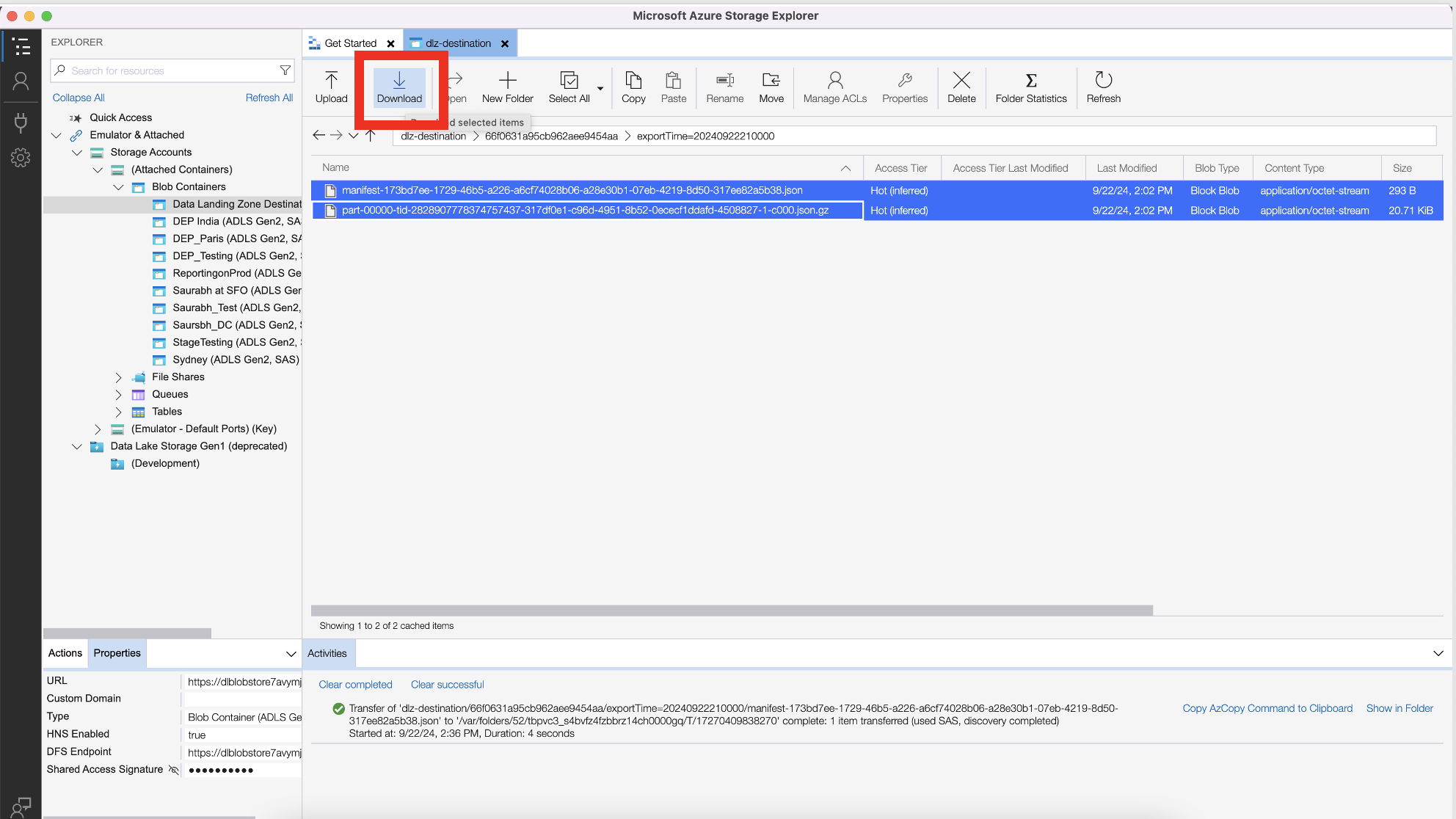
4\. Download the files locally by selecting the files and clicking **Download**:

<figure><img src="https://1899859430-files.gitbook.io/~/files/v0/b/gitbook-x-prod.appspot.com/o/spaces%2FEhcgqFIfGdE0GXJzi5yR%2Fuploads%2FHwKS1X3UNpYkwvB0F6N6%2FScreen%20Shot%202024-09-22%20at%202.54.09%20PM.png?alt=media&#x26;token=1261b192-0cc2-40d4-96fc-ca79961f92bb" alt=""><figcaption><p>Download the two files</p></figcaption></figure>

5\.  Manifest file looks like this:

<figure><img src="https://1899859430-files.gitbook.io/~/files/v0/b/gitbook-x-prod.appspot.com/o/spaces%2FEhcgqFIfGdE0GXJzi5yR%2Fuploads%2FIthP834MLuJaN7GeLRNO%2FScreen%20Shot%202024-09-22%20at%202.56.26%20PM.png?alt=media&#x26;token=ed89a7b8-6dbb-4992-81ee-90d44e519955" alt=""><figcaption><p>Manifest files in TextEdit application on Mac</p></figcaption></figure>

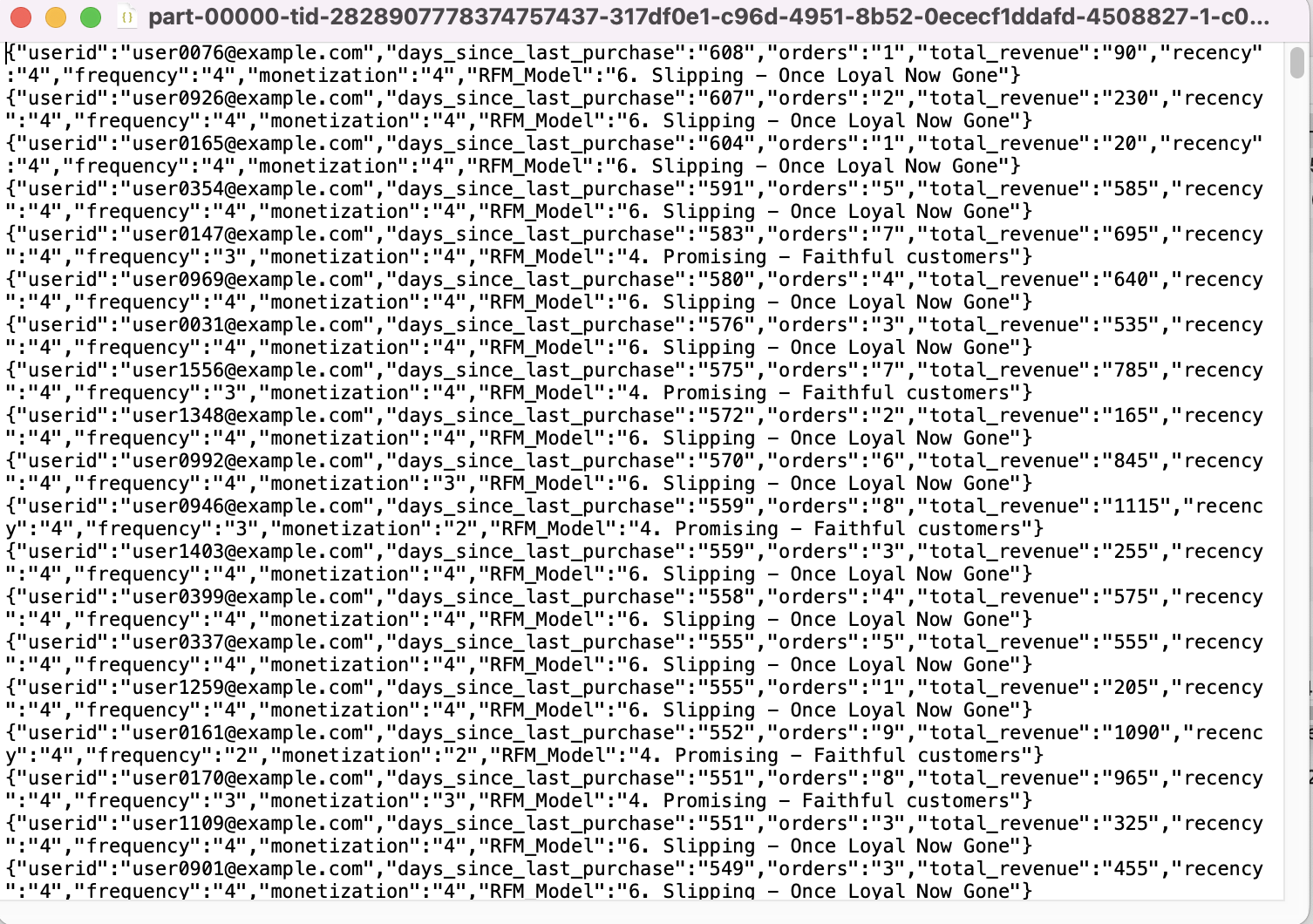
6. To open the other file on a Mac, simply double-click it or unzip it if it's compressed. This should result in a JSON file:

<figure><img src="https://1899859430-files.gitbook.io/~/files/v0/b/gitbook-x-prod.appspot.com/o/spaces%2FEhcgqFIfGdE0GXJzi5yR%2Fuploads%2F8cR4zoS6zekCGC42g6vd%2FScreen%20Shot%202024-09-22%20at%202.58.52%20PM.png?alt=media&#x26;token=08a279ae-1b5f-473e-88c8-b6dcaf7568e6" alt=""><figcaption><p>JSON file </p></figcaption></figure>

## Manifest Files

The manifest file will look like the following:

{% code overflow="wrap" %}

```json
{"flowRunId":"a28e30b1-07eb-4219-8d50-317ee82a5b38","scheduledTime":"2024-09-22T21:00:00Z","exportResults":[{"sinkPath":"/66f0631a95cb962aee9454aa/exportTime=20240922210000","name":"part-00000-tid-2828907778374757437-317df0e1-c96d-4951-8b52-0ececf1ddafd-4508827-1-c000.json.gz","size":21207}]}
```

{% endcode %}

The manifest file for the destination export provides key information about the data export process, which is highly useful for the end user in several ways:

* **Audit & Monitoring**
  * **`flowRunId`**: This is a unique internal identifier for the export process or flow within the Adobe Experience Platform. It allows you to track and trace a specific export job. In case of issues or questions dealing with **Adobe Support**, the **`flowRunId`** can be used by them to find logs, retry the export, or analyze the performance of the flow.
  * **`scheduledTime`**: This field shows when the export was scheduled to occur (`2023-08-18T01:00:00Z` in this case). This is useful for auditing purposes, verifying that the export happened at the correct time, or ensuring the scheduling of exports aligns with your needs(e.g., daily or hourly exports).
* **`Data Integrity & Validation`**
  * **`exportResults`**:
    * **`sinkPath`**: This is the destination path where the exported data has been stored. This helps the user quickly locate the data for further processing or analysis.
    * **`name`**: This is the name of the exported file. It often contains details like the file name which help the user identify the data contents and time of export.
    * **`size`**: This specifies the size of the exported file. Knowing the file size helps the user understand the volume of data being exported and can be useful for managing storage costs, transfer speeds, or estimating the data load. If a file size is unexpectedly small or large, the you might want to investigate further to ensure no data was lost or duplicated.

## DULE: Data Export Marketing Action

**DULE (Data Usage Labeling and Enforcement)** is a data governance system in Adobe Experience Platform (AEP) that enables you to assign specific usage labels to datasets or individual fields within a dataset. You can create and apply rules, known as policies, which link these usage labels to actions—usually allowing or disallowing certain uses. Most prebuilt policies focus on controlling access to audiences or datasets, either restricting the entire audience or dataset, or specific fields within them.

Let us explore the **Data Export Marketing Action** in depth

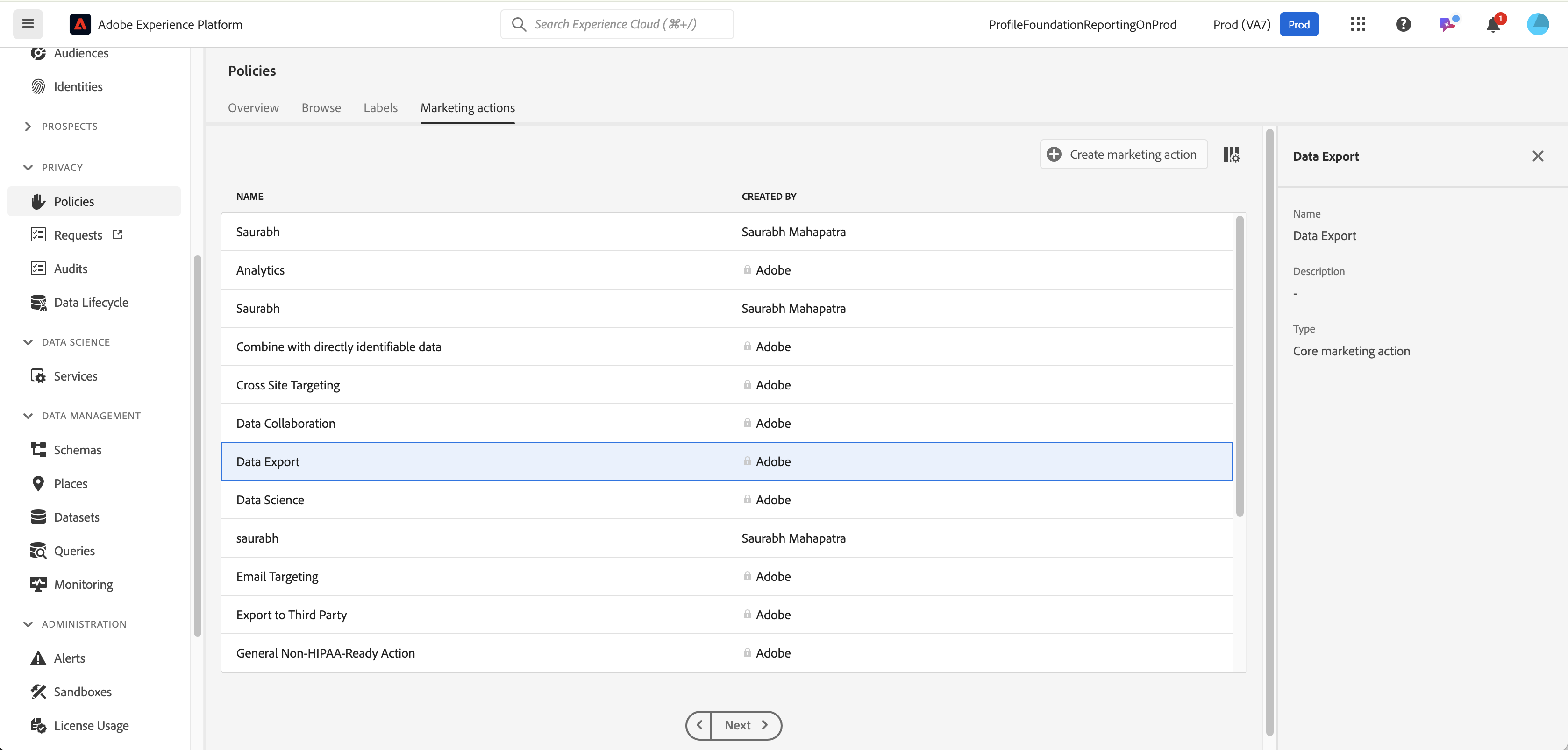
1. Browse to **Privacy->Policies->Marketing Actions->Data Export**

<figure><img src="https://1899859430-files.gitbook.io/~/files/v0/b/gitbook-x-prod.appspot.com/o/spaces%2FEhcgqFIfGdE0GXJzi5yR%2Fuploads%2FtT7KtSWeXFmzpG0qL1m1%2FScreen%20Shot%202024-09-22%20at%202.42.28%20PM.png?alt=media&#x26;token=ab1399b8-d2ee-4f38-994a-68a0d4877c4c" alt=""><figcaption></figcaption></figure>

The **Data Export action (authored by Adobe)** involves exporting data to any location or destination outside of Adobe products and services. Examples include downloading data to your local machine, copying data from the screen, scheduling data delivery to an external location, Customer Journey Analytics scheduled projects, downloading reports, using the Reporting API, and similar activities.

Whether this action will allow the data to be processed depends on its association with specific labels, as defined by a **governing policy** that determines whether the action is approved or restricted. Therefore, the marketing action itself has no inherent meaning other than enforcing a rule (in this case, an export) or not.

2. Browse to **Privacy->Policies->Labels->Data Export**

<figure><img src="https://1899859430-files.gitbook.io/~/files/v0/b/gitbook-x-prod.appspot.com/o/spaces%2FEhcgqFIfGdE0GXJzi5yR%2Fuploads%2FLeTilRcJssfFw2P2nVHS%2FScreen%20Shot%202024-09-22%20at%202.42.43%20PM.png?alt=media&#x26;token=458f0fcc-7e83-4916-8337-2d51d2b24ce5" alt=""><figcaption><p>Labels available</p></figcaption></figure>

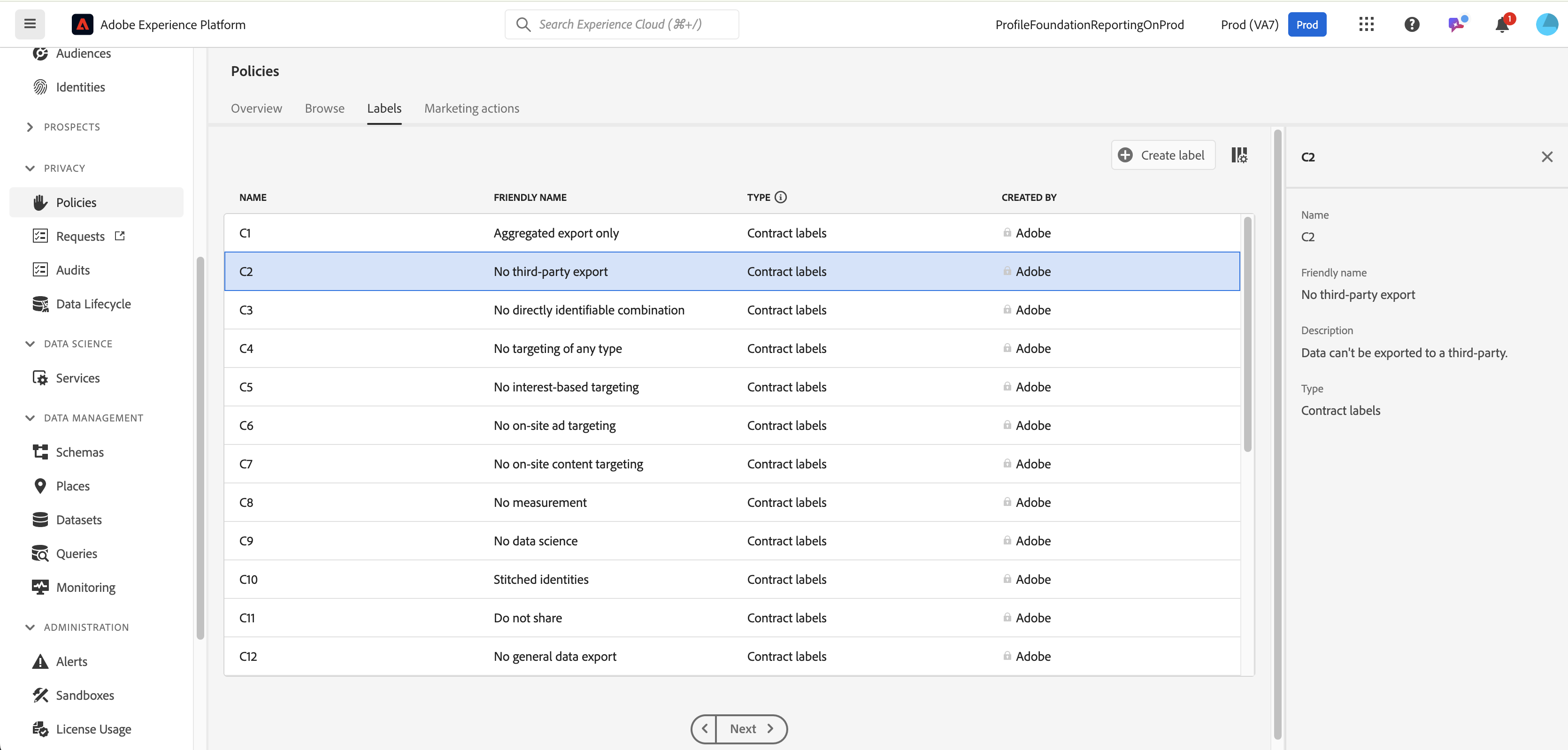
The **C2 contract label** specifies that any marketing action associated with this usage label in a policy will result in the export of data being disallowed. This ensures that data governed by the C2 label cannot be exported for marketing purposes under any circumstances.

The **C2 label** is more restrictive than the **C1 label**, which only permits export in aggregated, anonymous form. Browse through these labels and they give you a sense of the kinds of governance policies you can impose on the data you have.&#x20;

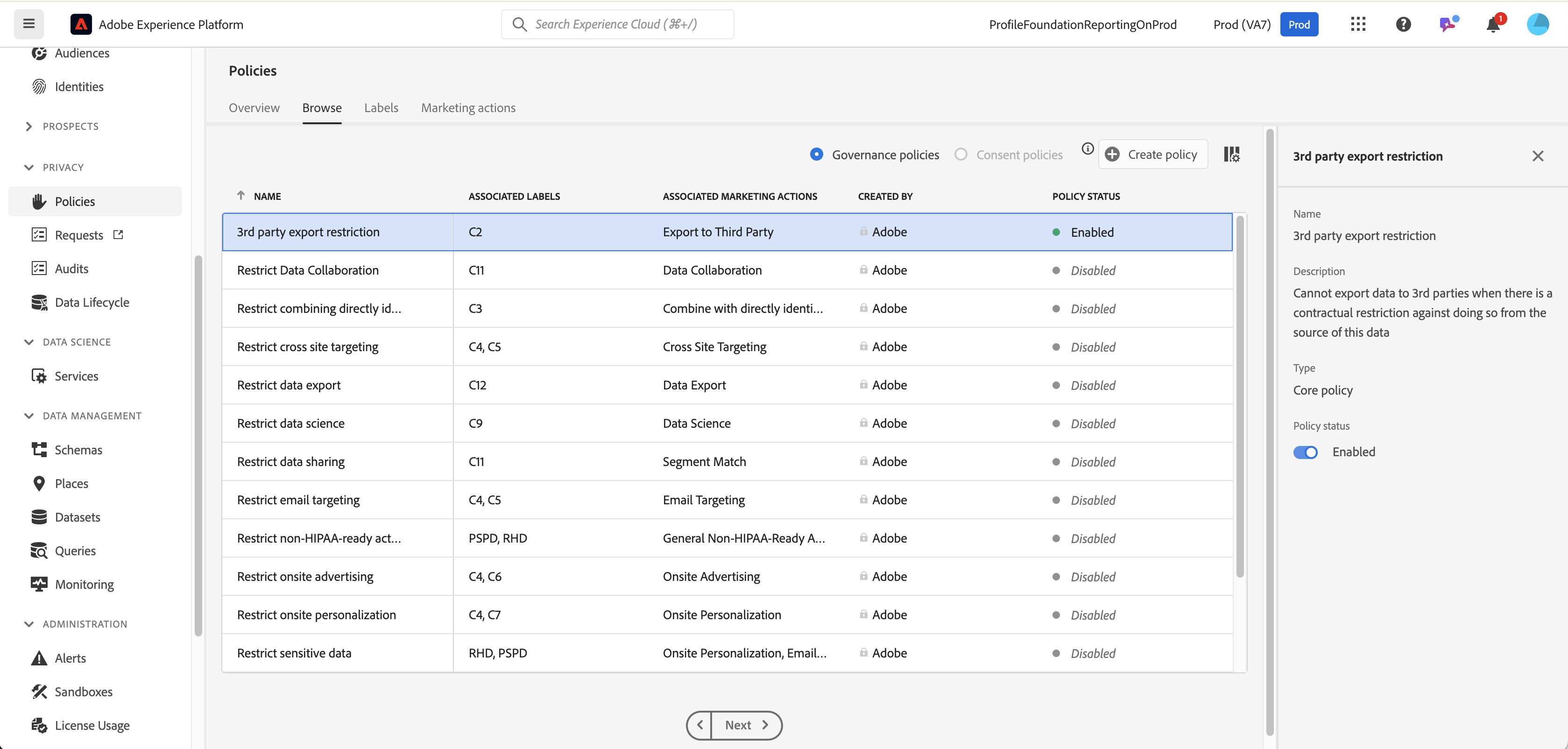
3. Click on **Privacy->Policies->Browse->3rd Party Export Restriction**

<figure><img src="https://1899859430-files.gitbook.io/~/files/v0/b/gitbook-x-prod.appspot.com/o/spaces%2FEhcgqFIfGdE0GXJzi5yR%2Fuploads%2FEEaoWBMXipewJIDknbvJ%2FScreen%20Shot%202024-09-22%20at%202.43.04%20PM.png?alt=media&#x26;token=20baa1f8-4170-4e2f-a075-94f53092e4d6" alt=""><figcaption><p><strong>3rd Party Export Restriction</strong></p></figcaption></figure>

It’s clear that the **Data Export Marketing Action** (under the **Associated Marketing Action** column) has been preconfigured by Adobe to automatically prevent the export of any dataset containing fields marked with the **C2** contract label (under associated labels). This ensures that fields tagged with the **C2 label** are restricted from being exported to comply with contractual and governance rules. Thus, labels associate the color on the Marketing Action and that helps define thee policy here.&#x20;

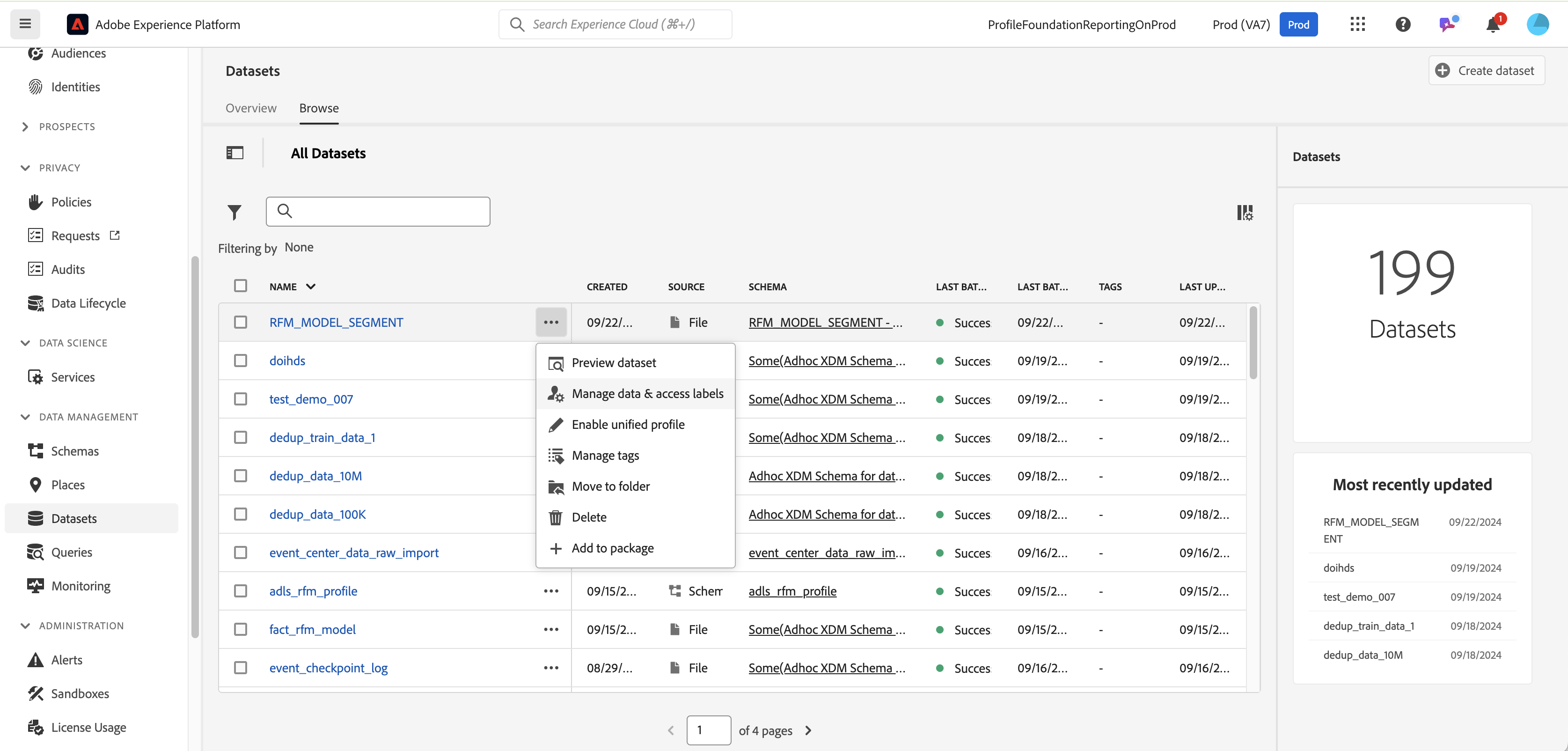
4. Browse to **Datasets->Browse->RFM\_MODEL\_SEGMENT** dataset. Click on **Manage Data & Access Labels**

<figure><img src="https://1899859430-files.gitbook.io/~/files/v0/b/gitbook-x-prod.appspot.com/o/spaces%2FEhcgqFIfGdE0GXJzi5yR%2Fuploads%2FXRTOQHWXgs8UGKn1wGx5%2FScreen%20Shot%202024-09-22%20at%202.43.33%20PM.png?alt=media&#x26;token=4f00e960-3b78-4afd-a3e5-f36368e04388" alt=""><figcaption><p>Click on the ellipsis to access the Data Labels</p></figcaption></figure>

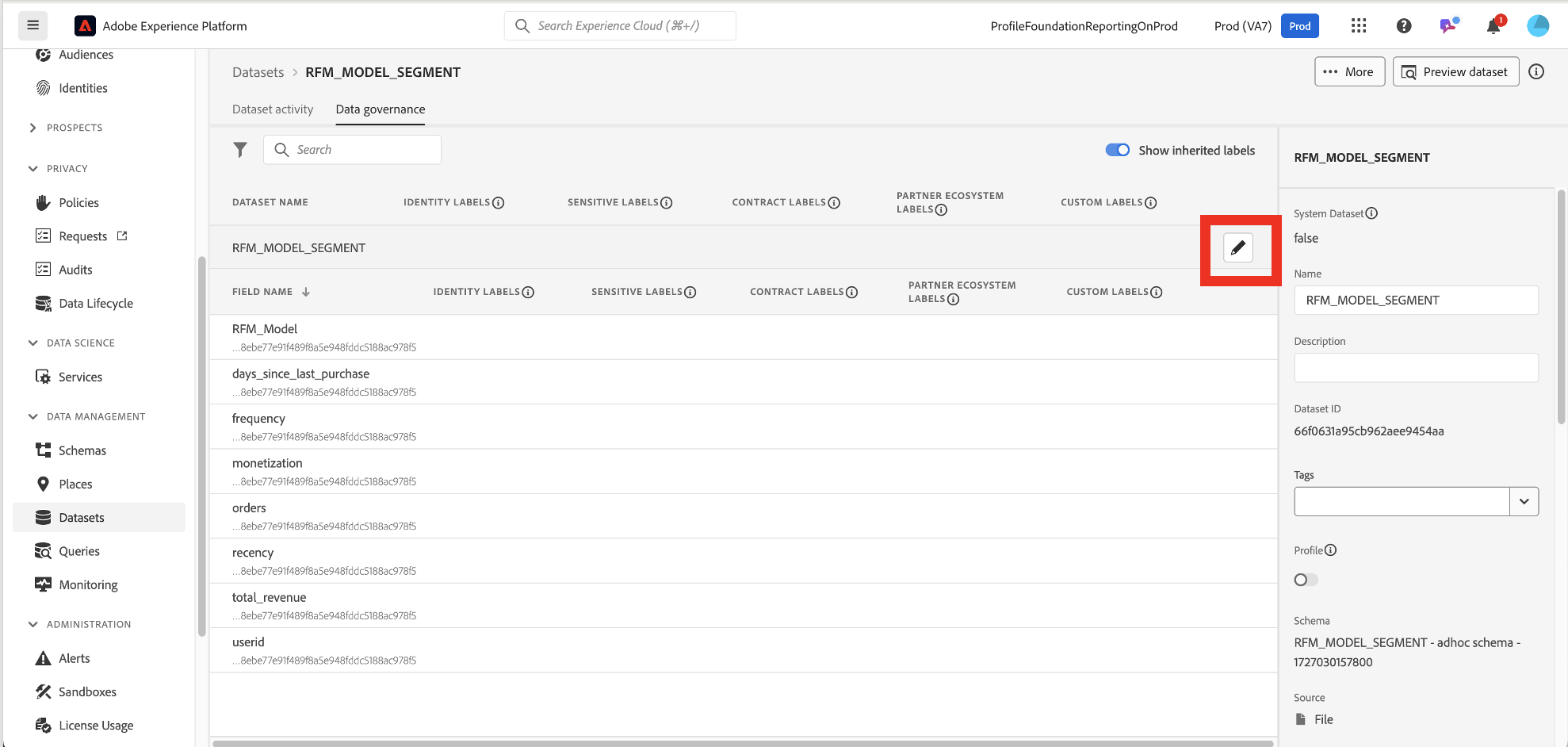
5. This bring us into the **Data Governance** tab. Click on the pencil icon

<figure><img src="https://1899859430-files.gitbook.io/~/files/v0/b/gitbook-x-prod.appspot.com/o/spaces%2FEhcgqFIfGdE0GXJzi5yR%2Fuploads%2F4JmhQEmQkQAvfYUuSvG5%2FScreen%20Shot%202024-09-22%20at%204.37.09%20PM.png?alt=media&#x26;token=fd977905-9f8b-4b63-ba7c-000b6981a0db" alt=""><figcaption><p>All fields are available as a flat list</p></figcaption></figure>

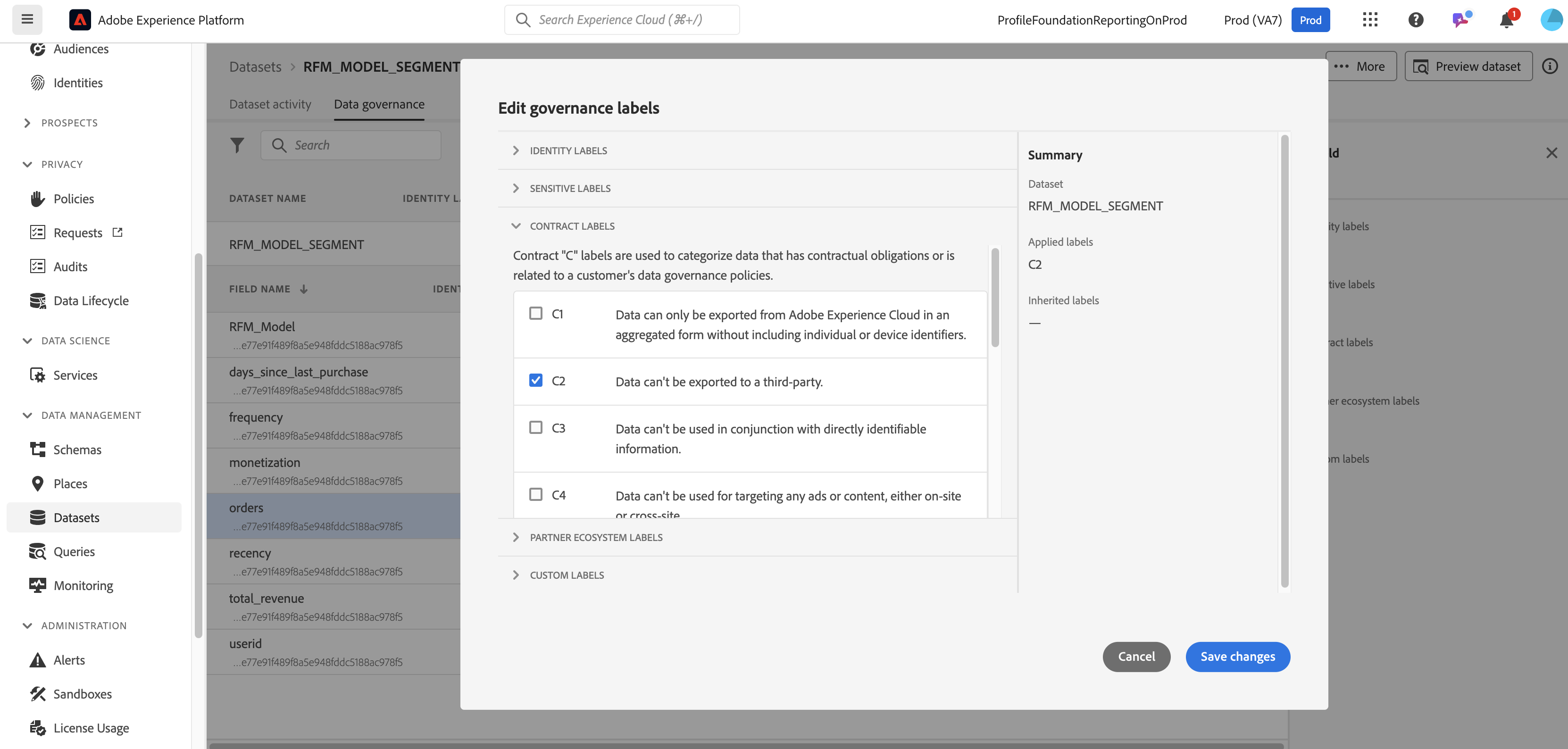
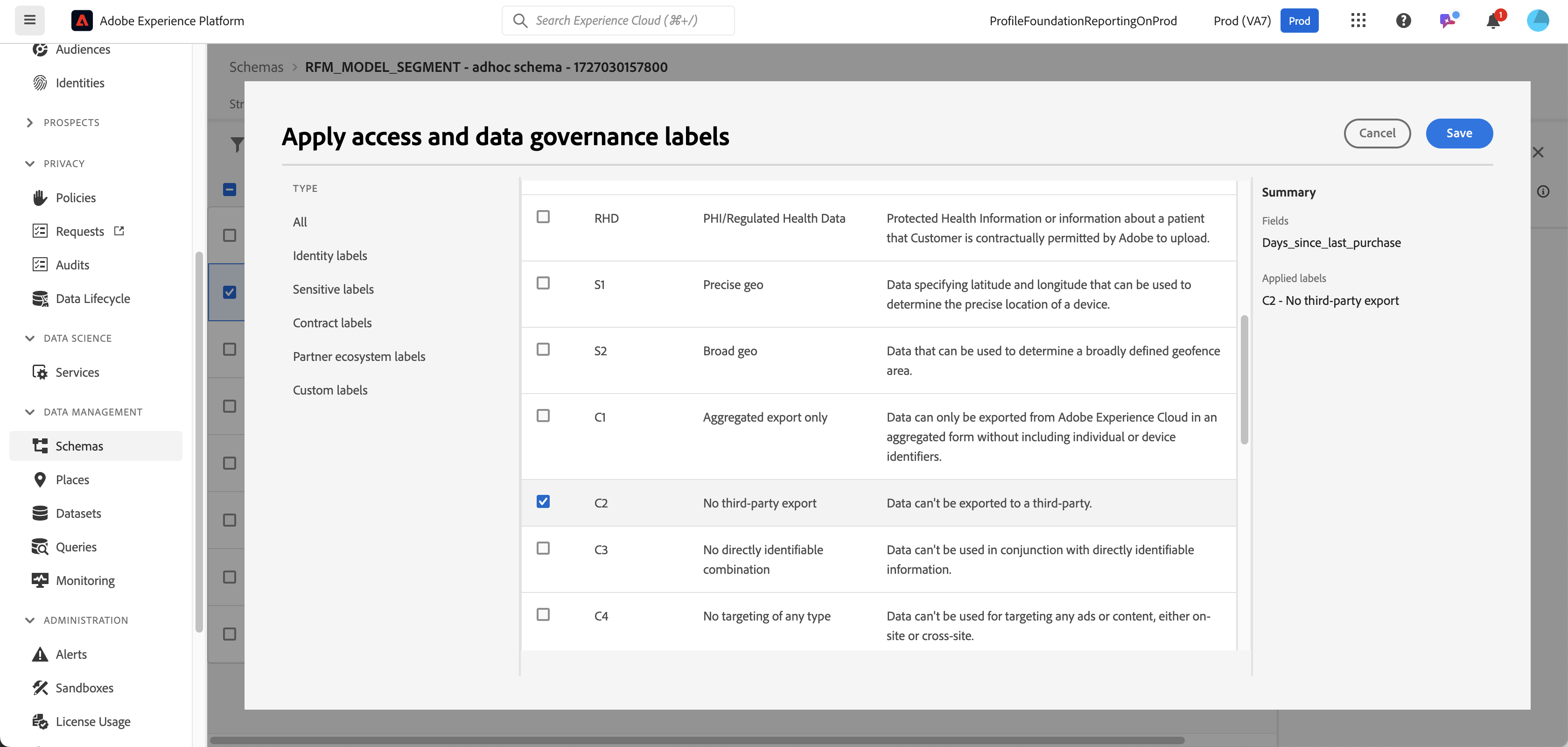
6. Choose **C2 contract** label.&#x20;

<figure><img src="https://1899859430-files.gitbook.io/~/files/v0/b/gitbook-x-prod.appspot.com/o/spaces%2FEhcgqFIfGdE0GXJzi5yR%2Fuploads%2FWTBSWfYq4LfmOANqKoIe%2FScreen%20Shot%202024-09-22%20at%202.45.24%20PM.png?alt=media&#x26;token=54ac4198-bf28-4a94-bcdb-d7800fc8af7a" alt=""><figcaption><p>Apply a label on an entire dataset</p></figcaption></figure>

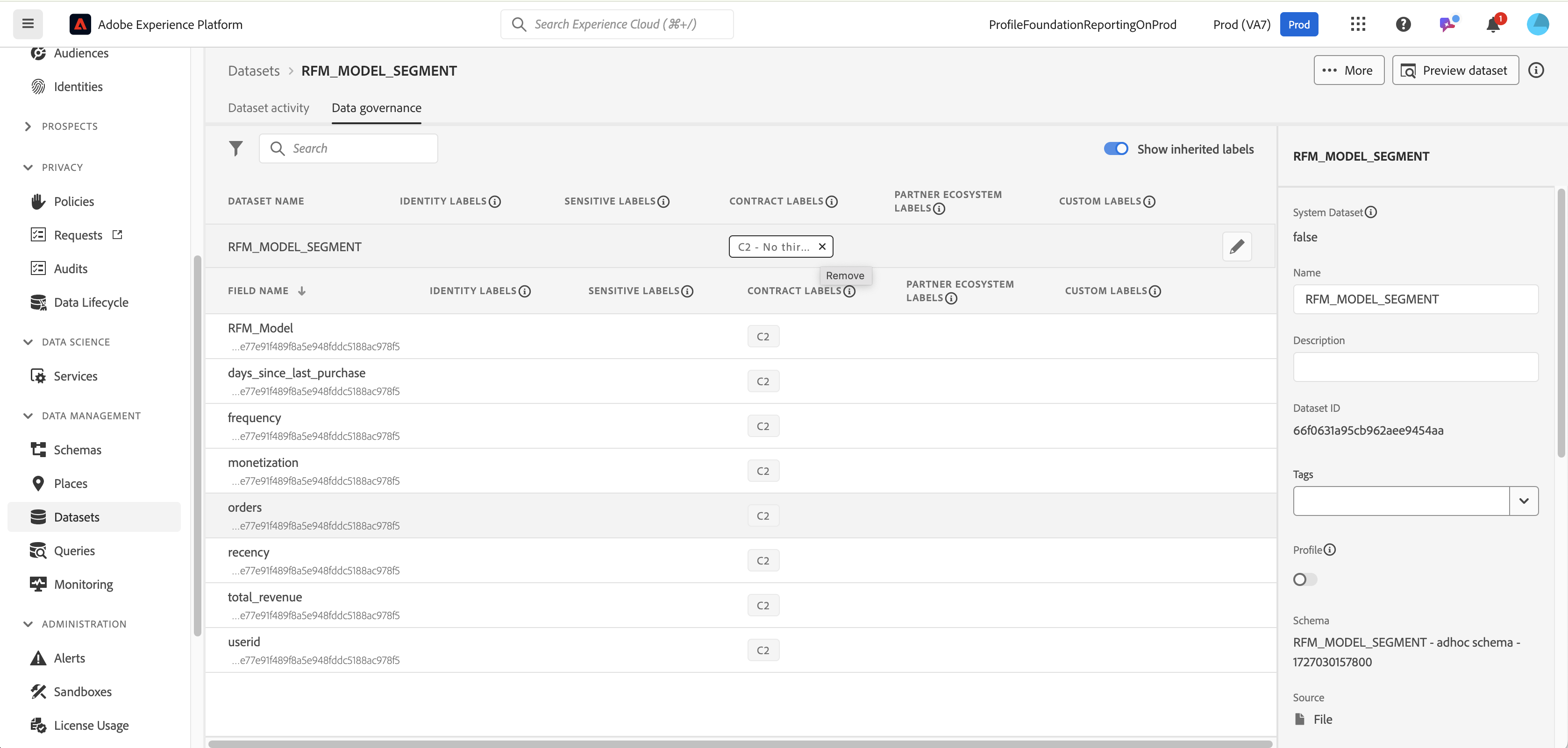
7. You will notice that all the fields in this dataset are now associated with the C2 contract label, meaning none of the fields can be exported to a third-party destination if the marketing action is enabled for that flow. However, a different dataset with the same schema could still be exported, as the labeling is applied at the dataset level. This allows for dataset-specific control, giving you the flexibility to manage export permissions on a per-dataset basis.

<figure><img src="https://1899859430-files.gitbook.io/~/files/v0/b/gitbook-x-prod.appspot.com/o/spaces%2FEhcgqFIfGdE0GXJzi5yR%2Fuploads%2FdZ0H1qJhP5SKvKh3oVRZ%2FScreen%20Shot%202024-09-22%20at%202.45.43%20PM.png?alt=media&#x26;token=3ae501e6-4591-4b45-9898-250e46b4f1d2" alt=""><figcaption><p>C2 contract labels are now applied to all of the fields</p></figcaption></figure>

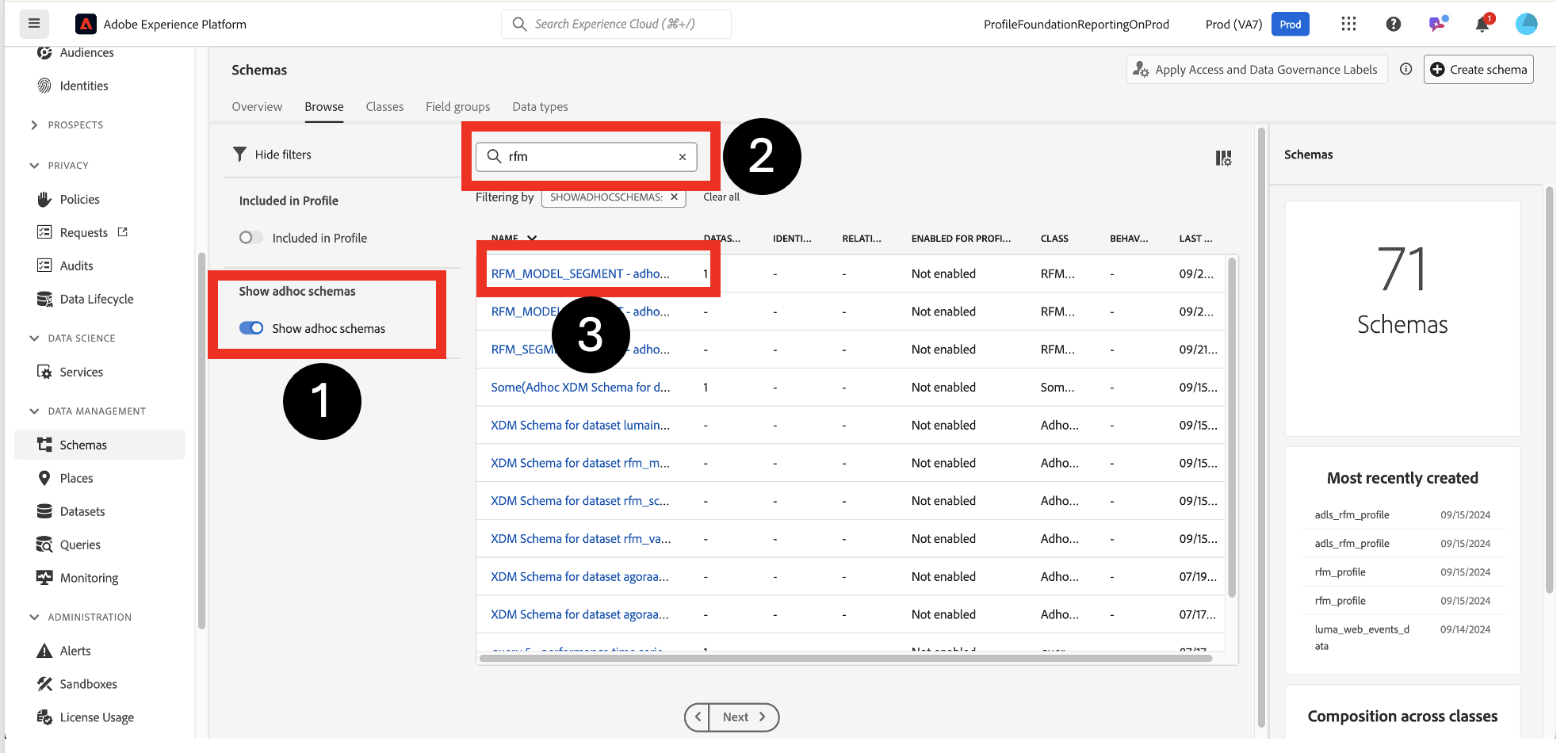
8. If you want to restrict the export of certain fields across all datasets that share the same schema, you can apply data usage labels at the **field level** rather than the dataset level. By labeling specific fields (such as those containing sensitive or personal information) with restrictive labels like the **C2 contract label**, these fields will be blocked from being exported across any dataset using the same schema. Click to **Schemas.** Turn on **Show adhoc schemas. Search for rfm.** Click on **ad hoc schema**&#x20;

<figure><img src="https://1899859430-files.gitbook.io/~/files/v0/b/gitbook-x-prod.appspot.com/o/spaces%2FEhcgqFIfGdE0GXJzi5yR%2Fuploads%2FgDJBPb9Kt9Ni6wmbCrXM%2FScreen%20Shot%202024-09-22%20at%204.42.39%20PM.png?alt=media&#x26;token=57baec62-fec4-4a06-9bc0-8da56ea652cc" alt=""><figcaption><p>Locate the ad hoc schema to apply the DULE labels on</p></figcaption></figure>

{% hint style="info" %}
The **Create Dataset from CSV** workflow generates both a dataset and a schema dynamically. Since there is no predefined knowledge about whether the schema represents an attribute schema (such as **XDM Individual Profile**), an event schema (such as **XDM Experience Event**), or any other standard schema, the resulting schema is referred to as an **ad hoc schema**. This is because the system does not automatically categorize the dataset under any specific schema type that would typically allow it to be used in predefined workflows or processes.
{% endhint %}

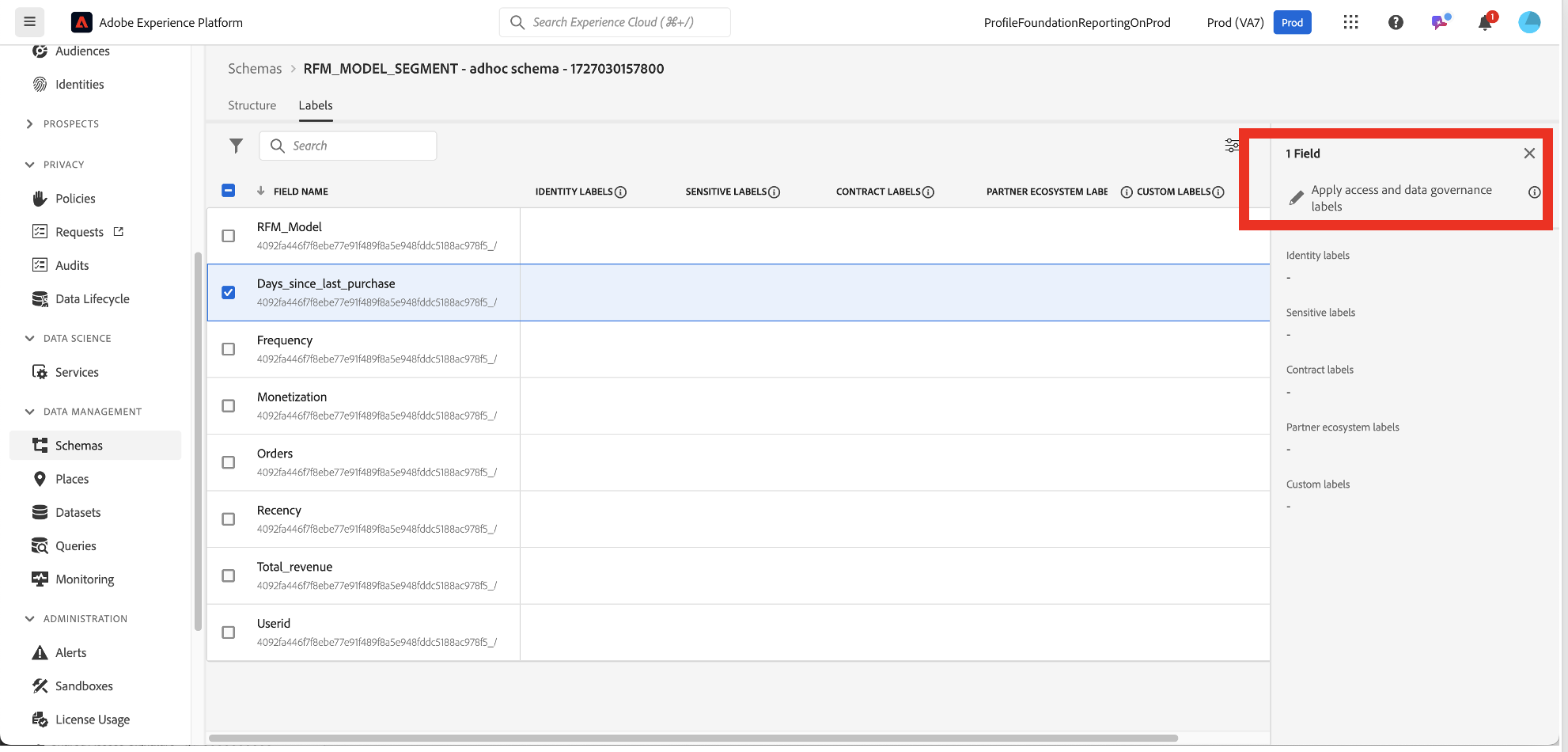
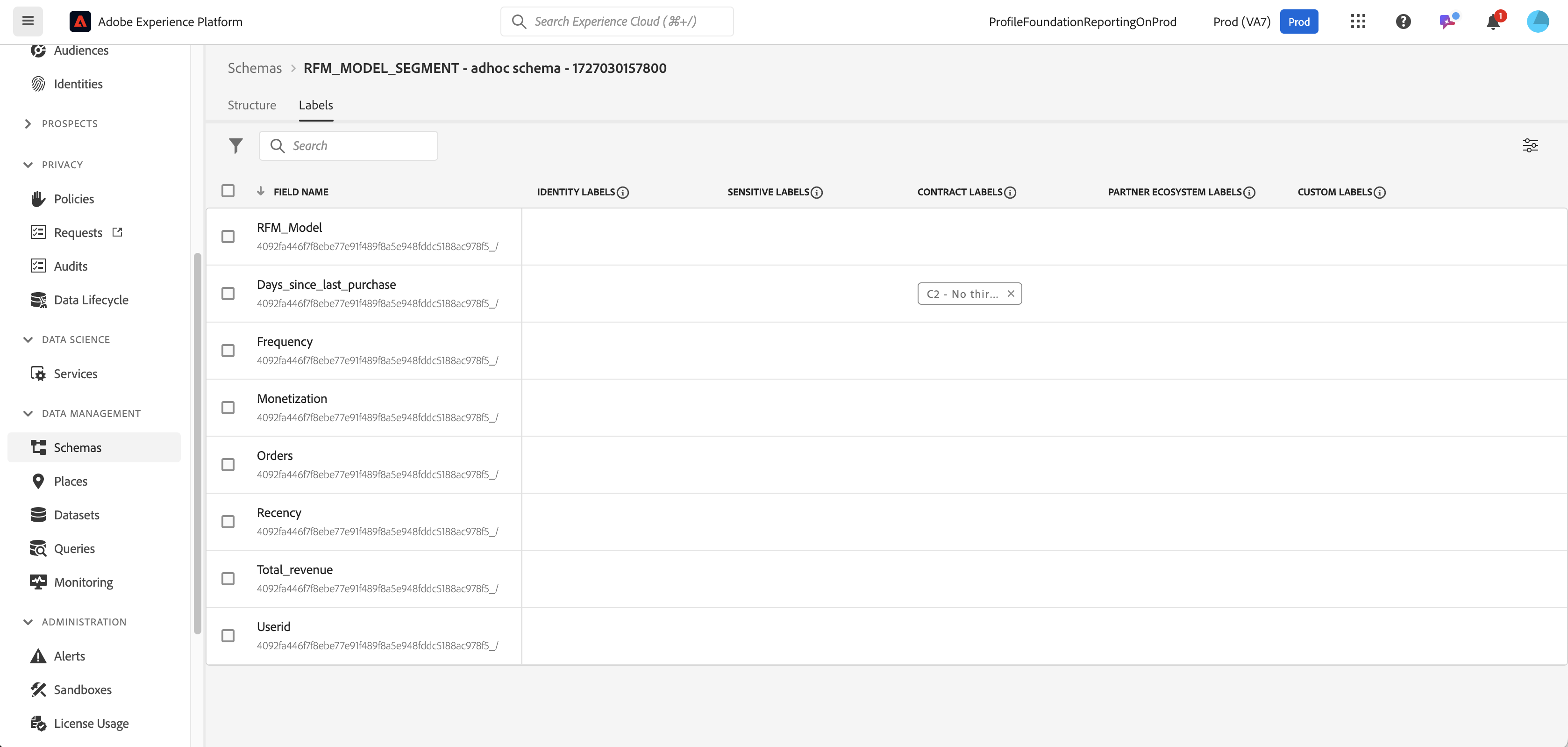
9. Click on the schema and then click on **Labels**. You will see a screen that looks like  Here you can choose an individual field and apply a **C2 contract labe**l to it. Click on the **pencil icon**

<figure><img src="https://1899859430-files.gitbook.io/~/files/v0/b/gitbook-x-prod.appspot.com/o/spaces%2FEhcgqFIfGdE0GXJzi5yR%2Fuploads%2FGsSVEPsvllAdJNentCOg%2FScreen%20Shot%202024-09-22%20at%204.49.52%20PM.png?alt=media&#x26;token=b000eeca-e632-492c-886e-8a0f6715c4e1" alt=""><figcaption><p>Apply the labels on a field</p></figcaption></figure>

10. Choose the **C2 Contract Label** and click **Save**

<figure><img src="https://1899859430-files.gitbook.io/~/files/v0/b/gitbook-x-prod.appspot.com/o/spaces%2FEhcgqFIfGdE0GXJzi5yR%2Fuploads%2F6m4X94KmKofaiy9OFUJY%2FScreen%20Shot%202024-09-22%20at%202.47.08%20PM.png?alt=media&#x26;token=981e934c-537f-4d6d-bc94-2c6dca23ab43" alt=""><figcaption><p>Choose the labels for the field</p></figcaption></figure>

11. You will see the labels applied

<figure><img src="https://1899859430-files.gitbook.io/~/files/v0/b/gitbook-x-prod.appspot.com/o/spaces%2FEhcgqFIfGdE0GXJzi5yR%2Fuploads%2FgfLxYIRNH2huGqboGIOr%2FScreen%20Shot%202024-09-22%20at%202.47.17%20PM.png?alt=media&#x26;token=aa61d029-e755-4c4d-bc2f-ebb69290c033" alt=""><figcaption><p>Label applied to an individual field</p></figcaption></figure>

In general, all datasets that use this schema will have this field blocked from being exported out.

## A Note on Adobe Analytics Data Feeds

Please read this tutorial on extracting the fields:

{% content-ref url="../unit-2-data-distiller-data-exploration/explore-201-exploring-web-analytics-data-with-data-distiller" %}
[explore-201-exploring-web-analytics-data-with-data-distiller](https://data-distilller.gitbook.io/adobe-data-distiller-guide/unit-2-data-distiller-data-exploration/explore-201-exploring-web-analytics-data-with-data-distiller)
{% endcontent-ref %}

Please read the following tutorial on extracting data from nested structures like arrays and maps such as the Identities from an **`identityMap:`**

{% content-ref url="../unit-5-data-distiller-identity-resolution/idr-200-extracting-identity-graph-from-profile-attribute-snapshot-data-with-data-distiller" %}
[idr-200-extracting-identity-graph-from-profile-attribute-snapshot-data-with-data-distiller](https://data-distilller.gitbook.io/adobe-data-distiller-guide/unit-5-data-distiller-identity-resolution/idr-200-extracting-identity-graph-from-profile-attribute-snapshot-data-with-data-distiller)
{% endcontent-ref %}

### Hit-Level Data and Identification in Adobe Experience Platform

In Adobe Experience Platform, hit-level data, traditionally collected by Adobe Analytics, is stored as timestamped event data. This section provides guidance on how to map specific Adobe Analytics Data Feed columns to XDM fields in the Experience Platform. It also shows how hits, visits, and visitors are identified using XDM fields.

### **Hit Identification**

In the Experience Platform, each "hit" represents an event triggered by a user action, such as a page view or link click, and is identified by a combination of **`hitid_high`** and **`hitid_low`**. These fields are essential for tracking each unique event or interaction.

| Data Feed Column             | XDM Field           | Type   | Description                                                    |
| ---------------------------- | ------------------- | ------ | -------------------------------------------------------------- |
| **`hitid_high + hitid_low`** | `_id`               | string | A unique identifier for each hit.                              |
| **`hitid_low`**              | `_id`               | string | Used together with **`hitid_high`** for unique identification. |
| **`hitid_high`**             | `_id`               | string | Used together with **`hitid_low`** for unique identification.  |
| **`hit_time_gmt`**           | `receivedTimestamp` | string | The timestamp of the hit, in UNIX® time.                       |
| **`cust_hit_time_gmt`**      | `timestamp`         | string | This timestamp is used in timestamp-enabled datasets.          |

### **Visit and Visitor Identification**

Visits and visitors are identified using various identity fields in the Experience Platform. The combination of **`visid_high`** and **`visid_low`** forms a unique identifier for each visit. Additionally, customer-specific visitor IDs (e.g., **`cust_visid`**) and geolocation data are stored in the **`identityMap`** structure.

| Data Feed Column             | XDM Field                                          | Type           | Description                                                         |
| ---------------------------- | -------------------------------------------------- | -------------- | ------------------------------------------------------------------- |
| **`visid_high + visid_low`** | `identityMap`                                      | object         | A unique identifier for a visit.                                    |
| **`visid_high + visid_low`** | `endUserIDs._experience.aaid.id`                   | string         | A unique identifier for a visit.                                    |
| **`visid_high`**             | `endUserIDs._experience.aaid.primary`              | boolean        | Used with `visid_low` to uniquely identify a visit.                 |
| **`visid_high`**             | `endUserIDs._experience.aaid.namespace.code`       | string         | Used with `visid_low` to identify a visit uniquely.                 |
| **`visid_low`**              | `identityMap`                                      | object         | Used with `visid_high` to identify a visit.                         |
| **`cust_visid`**             | `identityMap`                                      | object         | The customer visitor ID.                                            |
| **`cust_visid`**             | `endUserIDs._experience.aacustomid.id`             | object         | The customer visitor ID.                                            |
| **`cust_visid`**             | `endUserIDs._experience.aacustomid.primary`        | boolean        | The customer visitor ID namespace code.                             |
| **`cust_visid`**             | `endUserIDs._experience.aacustomid.namespace.code` | string         | Used with `visid_low` to identify the customer visitor ID uniquely. |
| **`geo_*`**                  | `placeContext.geo.*`                               | string, number | Geolocation data, such as country, region, or city.                 |

### **Commerce and Event Tracking**

Commerce events such as purchases, product views, and checkouts are critical for e-commerce use cases. These events are represented in XDM fields such as `commerce.purchases`, and custom events can be tracked using `_experience.analytics` fields.

| Data Feed Column       | XDM Field                                    | Type    | Description                                                                             |
| ---------------------- | -------------------------------------------- | ------- | --------------------------------------------------------------------------------------- |
| **`event_list`**       | `commerce.purchases, commerce.productViews,` | string  | Standard commerce and custom events triggered on the hit.                               |
| **`page_event`**       | `web.webInteraction.type`                    | string  | The type of hit (e.g., standard hit, download link, exit link, or custom link clicked). |
| **`page_event_var_1`** | `web.webInteraction.URL`                     | string  | A variable used in link tracking image requests. Contains the URL of the clicked link.  |
| **`page_event_var_2`** | `web.webInteraction.name`                    | string  | A variable used in link tracking image requests. Lists the custom name of the link.     |
| **`paid_search`**      | `search.isPaid`                              | boolean | A flag that indicates whether the hit matches paid search detection.                    |
| **`ref_type`**         | `web.webReferrertype`                        | string  | A numeric ID representing the type of referral for the hit.                             |

### **Important: Post-Processing Columns**

Adobe Analytics uses columns prefixed with `post_` to represent data after processing. However, in the Experience Platform, there is no concept of post-processing fields for datasets collected through the Experience Platform Edge Network (Web SDK, Mobile SDK, Server API). Consequently, both pre- and post-processed data feed columns map to the same XDM field.

* For example, both `page_url` and `post_page_url` map to `web.webPageDetails.URL`.

### Post Processing of Data

Performing transformations like sessionization, attribution, and deduplication in your queries requires leveraging Data Distiller functions.

### **Sessionization**

Sessionization is used to group individual hits into logical sessions based on user interactions within a given time frame. The key ideas that we shall use are the following:

* **Sessionization**: The **`SESS_TIMEOUT`** function groups user events into sessions based on a timeout period (30 minutes in this case). A new session is started if no activity occurs within the timeout window.
* **Ingestion Time Tracking**: The script tracks the start and end times of batch ingestion. It uses this information to process only new data and update the checkpoint logs for future reference.
* **Checkpoint Logs**: This process logs the status of each batch in `checkpoint_log`, making it easy to track the state of data processing.
* **Anonymous Block:**&#x20;

#### Sample code for Sessionization

{% code overflow="wrap" %}

```sql
$$ BEGIN
   -- Disable dropping system columns
   set drop_system_columns=false;

   -- Initialize variables
   SET @last_updated_timestamp = SELECT CURRENT_TIMESTAMP;

   -- Get the last processed batch ingestion time
   SET @from_batch_ingestion_time = SELECT coalesce(last_batch_ingestion_time, 'HEAD')
      FROM checkpoint_log a
      JOIN (
            SELECT MAX(process_timestamp) AS process_timestamp
            FROM checkpoint_log
            WHERE process_name = 'data_feed'
            AND process_status = 'SUCCESSFUL'
      ) b
      ON a.process_timestamp = b.process_timestamp;

   -- Get the last batch ingestion time
   SET @to_batch_ingestion_time = SELECT MAX(_acp_system_metadata.ingestTime)
      FROM events_dataset;

   -- Sessionize the data and insert into data_feed.
   INSERT INTO data_feed
   SELECT *
   FROM (
      SELECT
            userIdentity,
            timestamp,
            SESS_TIMEOUT(timestamp, 60 * 30) OVER (
               PARTITION BY userIdentity
               ORDER BY timestamp
               ROWS BETWEEN UNBOUNDED PRECEDING AND CURRENT ROW
            ) AS session_data,
            page_name,
            ingest_time
      FROM (
            SELECT
               userIdentity,
               timestamp,
               web.webPageDetails.name AS page_name,
               _acp_system_metadata.ingestTime AS ingest_time
            FROM events_dataset
            WHERE timestamp >= current_date - 90
      ) AS a
      ORDER BY userIdentity, timestamp ASC
   ) AS b
   WHERE b.ingest_time >= @from_batch_ingestion_time;

   -- Update the checkpoint_log table
   INSERT INTO checkpoint_log
   SELECT
      'data_feed' process_name,
      'SUCCESSFUL' process_status,
      cast(@to_batch_ingestion_time AS string) last_batch_ingestion_time,
      cast(@last_updated_timestamp AS TIMESTAMP) process_timestamp
END
$$;

```

{% endcode %}

Let us dive into the query in detail:

1. **Disable Dropping System Columns**

```sql
set drop_system_columns=false;
```

This command disables the automatic removal of system columns. It ensures that columns like metadata (**`_acp_system_metadata.ingestTime`**) are retained and can be referenced later in the query.

2. **Initialize Variables**

```sql
SET @last_updated_timestamp = SELECT CURRENT_TIMESTAMP;
```

This statement initializes the variable **`@last_updated_timestamp`** with the current timestamp. This timestamp is later used to record when the batch process is completed.

**3. Get the Last Processed Batch Ingestion Time**

```sql
SET @from_batch_ingestion_time = SELECT coalesce(last_batch_ingestion_time, 'HEAD')
FROM checkpoint_log a
JOIN (
      SELECT MAX(process_timestamp) AS process_timestamp
      FROM checkpoint_log
      WHERE process_name = 'data_feed'
      AND process_status = 'SUCCESSFUL'
) b
ON a.process_timestamp = b.process_timestamp;
```

This block determines the time of the last successful batch ingestion by:

* Looking at the `checkpoint_log` table for entries where **`process_name`** is **`data_feed`** and **`process_status`** is **`SUCCESSFUL`**.
* The **`coalesce`** function ensures that if there's no previous ingestion time (first run), it uses the default value `'`**`HEAD`**`'`.
* The **`MAX(process_timestamp)`** fetches the most recent batch ingestion time.

4. **Get the Last Batch Ingestion Time**

```sql
SET @to_batch_ingestion_time = SELECT MAX(_acp_system_metadata.ingestTime)
FROM events_dataset;
```

This fetches the maximum ingestion time **(`_acp_system_metadata.ingestTime`)** from the **`events_dataset`** to determine when the most recent batch of data was ingested.

5. **Sessionize the Data and Insert it into `data_feed`**

```sql
INSERT INTO data_feed
SELECT *
FROM (
   SELECT
         userIdentity,
         timestamp,
         SESS_TIMEOUT(timestamp, 60 * 30) OVER (
            PARTITION BY userIdentity
            ORDER BY timestamp
            ROWS BETWEEN UNBOUNDED PRECEDING AND CURRENT ROW
         ) AS session_data,
         page_name,
         ingest_time
   FROM (
         SELECT
            userIdentity,
            timestamp,
            web.webPageDetails.name AS page_name,
            _acp_system_metadata.ingestTime AS ingest_time
         FROM events_dataset
         WHERE timestamp >= current_date - 90
   ) AS a
   ORDER BY userIdentity, timestamp ASC
) AS b
WHERE b.ingest_time >= @from_batch_ingestion_time;
```

This section performs **sessionization** and **data insertion**:

1. Inner Query (Alias: `a`):
   1. Extracts relevant fields like **`userIdentity`, `timestamp`, `page_name`**, and **`ingest_time`** from **`events_dataset`**.
   2. Filters records to only include those within the past 90 days (**`timestamp >= current_date - 90`**).

2. Sessionization (**`SESS_TIMEOUT`**):
   1. Uses the **`SESS_TIMEOUT`** function to create session boundaries with a 30-minute (1800 seconds) timeout.
   2. The **`OVER`** clause applies sessionization logic by partitioning the data by `userIdentity` and ordering by `timestamp`.
   3. Each row is assigned a session identifier based on user activity within a 30-minute window of inactivity.

3. Outer Query (Alias: `b`):
   1. Selects and orders data based on **`userIdentity`** and **`timestamp`**.
   2. Filters the result set to only include data that has been ingested since the last batch ingestion (**`b.ingest_time >= @from_batch_ingestion_time`**).

4. Insert:
   1. Inserts the sessionized data into the **`data_feed`** table.

5. **Update the Checkpoint Log**

```sql
INSERT INTO checkpoint_log
SELECT
   'data_feed' process_name,
   'SUCCESSFUL' process_status,
   cast(@to_batch_ingestion_time AS string) last_batch_ingestion_time,
   cast(@last_updated_timestamp AS TIMESTAMP) process_timestamp;
```

This inserts a new entry into the **`checkpoint_log`** table with:

* **process\_name: `'data_feed'`.**
* **process\_status**: **`'SUCCESSFUL'`**, indicating that the batch was successfully processed.
* **last\_batch\_ingestion\_time**: The most recent ingestion time (from **`@to_batch_ingestion_time`**).
* **process\_timestamp**: The timestamp when the process was completed (from **`@last_updated_timestamp`**).

### **Attribution**

Attribution functions can be used to assign credit to different touchpoints in a user's journey based on predefined rules (e.g., last touch attribution).

#### Sample Code

{% code overflow="wrap" %}

```sql
$$ BEGIN
 SET drop_system_columns=false;

-- Initialize variables
 SET @last_updated_timestamp = SELECT CURRENT_TIMESTAMP;

-- Get the last processed batch ingestion time 1718755872325
 SET @from_batch_ingestion_time =
     SELECT coalesce(last_snapshot_id, 'HEAD')
     FROM checkpoint_log a
     JOIN (
         SELECT MAX(process_timestamp) AS process_timestamp
         FROM checkpoint_log
         WHERE process_name = 'data_feed'
         AND process_status = 'SUCCESSFUL'
     ) b
     ON a.process_timestamp = b.process_timestamp;

 -- Get the last batch ingestion time 1718758687865
 SET @to_batch_ingestion_time =
     SELECT MAX(_acp_system_metadata.ingestTime)
     FROM demo_data_trey_mcintyre_midvalues;

 -- Sessionize the data and insert into new_sessionized_data
 INSERT INTO new_sessionized_data
 SELECT *
 FROM (
     SELECT
         _id,
         timestamp,
         struct(User_Identity,
         cast(SESS_TIMEOUT(timestamp, 60 * 30) OVER (
             PARTITION BY User_Identity
             ORDER BY timestamp
             ROWS BETWEEN UNBOUNDED PRECEDING AND CURRENT ROW
         ) as string) AS SessionData,
         to_timestamp(from_unixtime(ingest_time/1000, 'yyyy-MM-dd HH:mm:ss')) AS IngestTime,
         PageName,
         first_url,
         first_channel_type
           ) as _demosystem5
     FROM (
         SELECT
             _id,
             ENDUSERIDS._EXPERIENCE.MCID.ID as User_Identity,
             timestamp,
             web.webPageDetails.name AS PageName,
            attribution_first_touch(timestamp, '', web.webReferrer.url) OVER (PARTITION BY ENDUSERIDS._EXPERIENCE.MCID.ID ORDER BY timestamp ASC ROWS BETWEEN UNBOUNDED PRECEDING AND UNBOUNDED FOLLOWING).value AS first_url,
            attribution_first_touch(timestamp, '',channel.typeAtSource) OVER (PARTITION BY ENDUSERIDS._EXPERIENCE.MCID.ID ORDER BY timestamp ASC ROWS BETWEEN UNBOUNDED PRECEDING AND UNBOUNDED FOLLOWING).value AS first_channel_type,
             _acp_system_metadata.ingestTime AS ingest_time
         FROM demo_data_trey_mcintyre_midvalues
         WHERE timestamp >= current_date - 90
     )
     ORDER BY User_Identity, timestamp ASC
 )
 WHERE _demosystem5.IngestTime >= to_timestamp(from_unixtime(@from_batch_ingestion_time/1000, 'yyyy-MM-dd HH:mm:ss'));

-- Update the checkpoint_log table
INSERT INTO checkpoint_log
SELECT
   'data_feed' as process_name,
   'SUCCESSFUL' as process_status,
   cast(@to_batch_ingestion_time AS string) as last_snapshot_id,
   cast(@last_updated_timestamp AS timestamp) as process_timestamp;

END
$$;

```

{% endcode %}

This attribution query adds **attribution logic** to capture the first touch point for URLs and channel types.&#x20;

#### **Attribution Logic**

In the second SQL query, two attribution functions are used:

```sql
attribution_first_touch(timestamp, '', web.webReferrer.url) OVER (
    PARTITION BY ENDUSERIDS._EXPERIENCE.MCID.ID 
    ORDER BY timestamp ASC 
    ROWS BETWEEN UNBOUNDED PRECEDING AND UNBOUNDED FOLLOWING
).value AS first_url,
```

```sql
attribution_first_touch(timestamp, '', channel.typeAtSource) OVER (
    PARTITION BY ENDUSERIDS._EXPERIENCE.MCID.ID 
    ORDER BY timestamp ASC 
    ROWS BETWEEN UNBOUNDED PRECEDING AND UNBOUNDED FOLLOWING
).value AS first_channel_type,
```

These functions introduce **first-touch attribution**, which differs from the simple sessionization logic in the first query. The above query uses the **`attribution_first_touch()`** Data Distiller function to identify the first event (or touchpoint) for each session or user, capturing the first URL visited and the first channel type used during a session.